VertiGIS Studio AI capabilities require a commercial license. Contact your VertiGIS Account Manager or reseller for more information.
The AI Command Assistant helps administrators understand, build, modify, and troubleshoot commands and operations in Studio Web Designer.
The assistant is designed specifically for Studio Web command development and provides targeted guidance based on the content of the current Custom Command Editor. This allows you to ask context-specific questions, without needing to copy and paste code manually.
The AI Command Assistant has the following limitations:
•Usage limits: The AI Command Assistant operates with built-in usage limitations.
•Session limits: Each chat session has a strict limit of 10 user prompts and 10 assistant responses. When this limit is reached, a button will appear prompting you to start a new chat session.
•Rate limits: Hourly and daily rate limitations are also in effect. If a rate limit is reached, a timer will appear indicating the remaining cool-off period. During this time, the interface provides a link to the official documentation so you can look up information manually while you wait.
To use the AI Command Assistant:
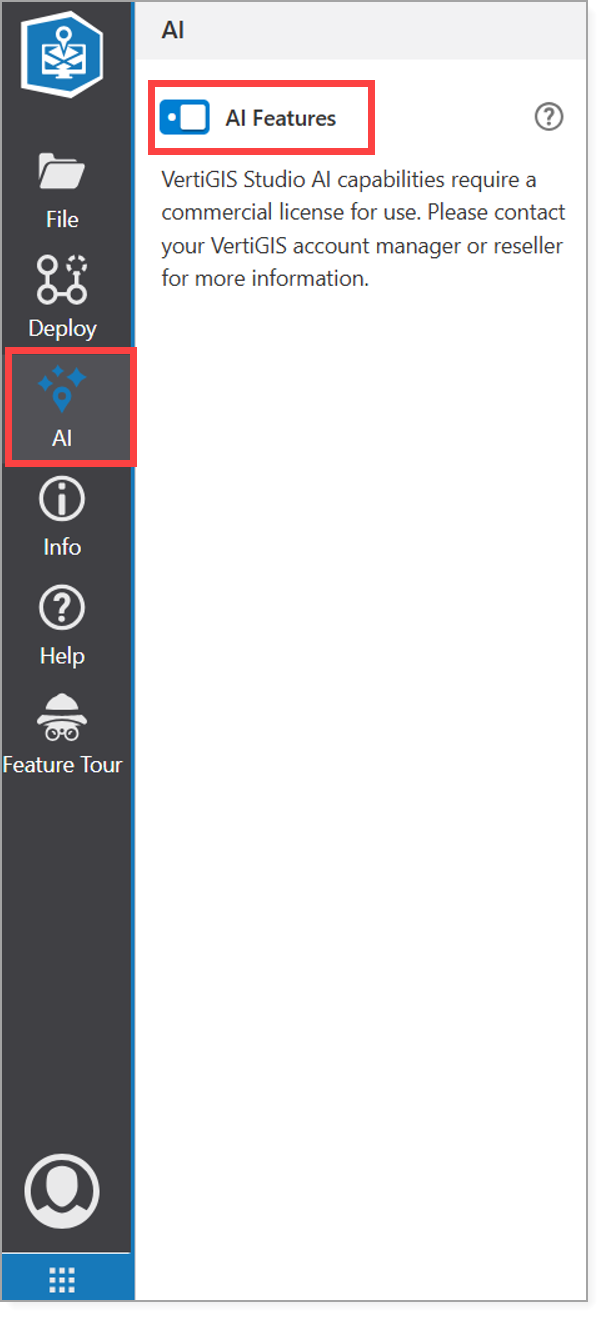
1.In the taskbar, select AI.
2.Enable the AI Features setting.
After its enabled, the Open AI Assistant icon appears in the bottom right corner of any Custom Command Editor.
3.Click the icon to open the assistant interface.
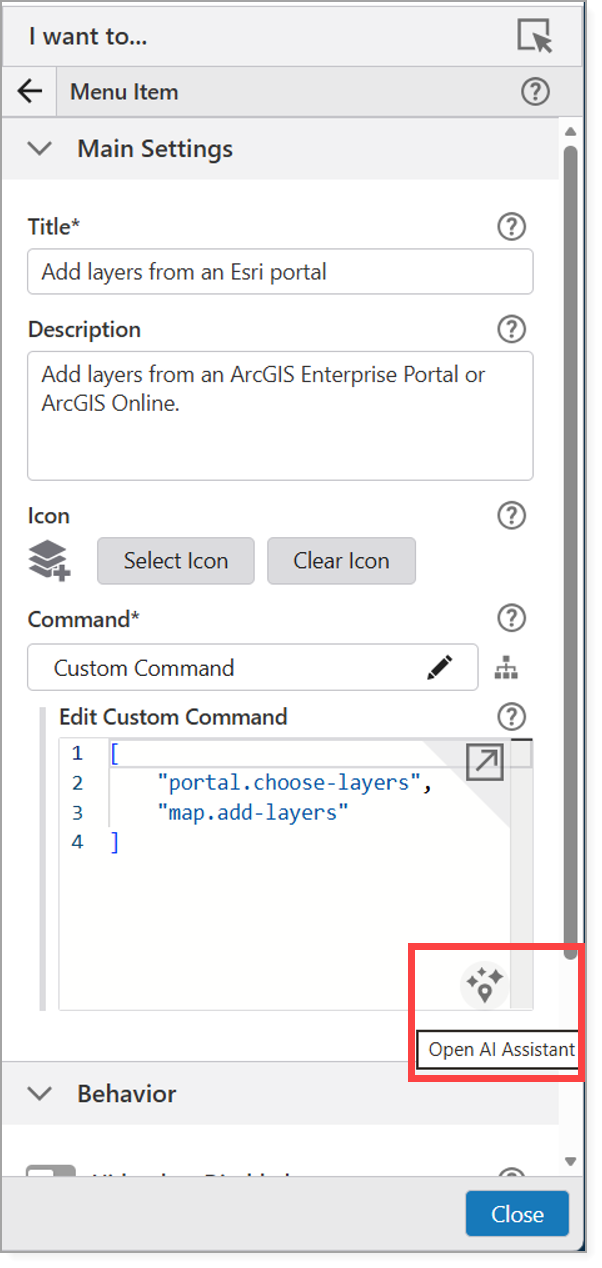
When opened, the AI Command Assistant is automatically aware of the current content inside the Custom Command Editor.
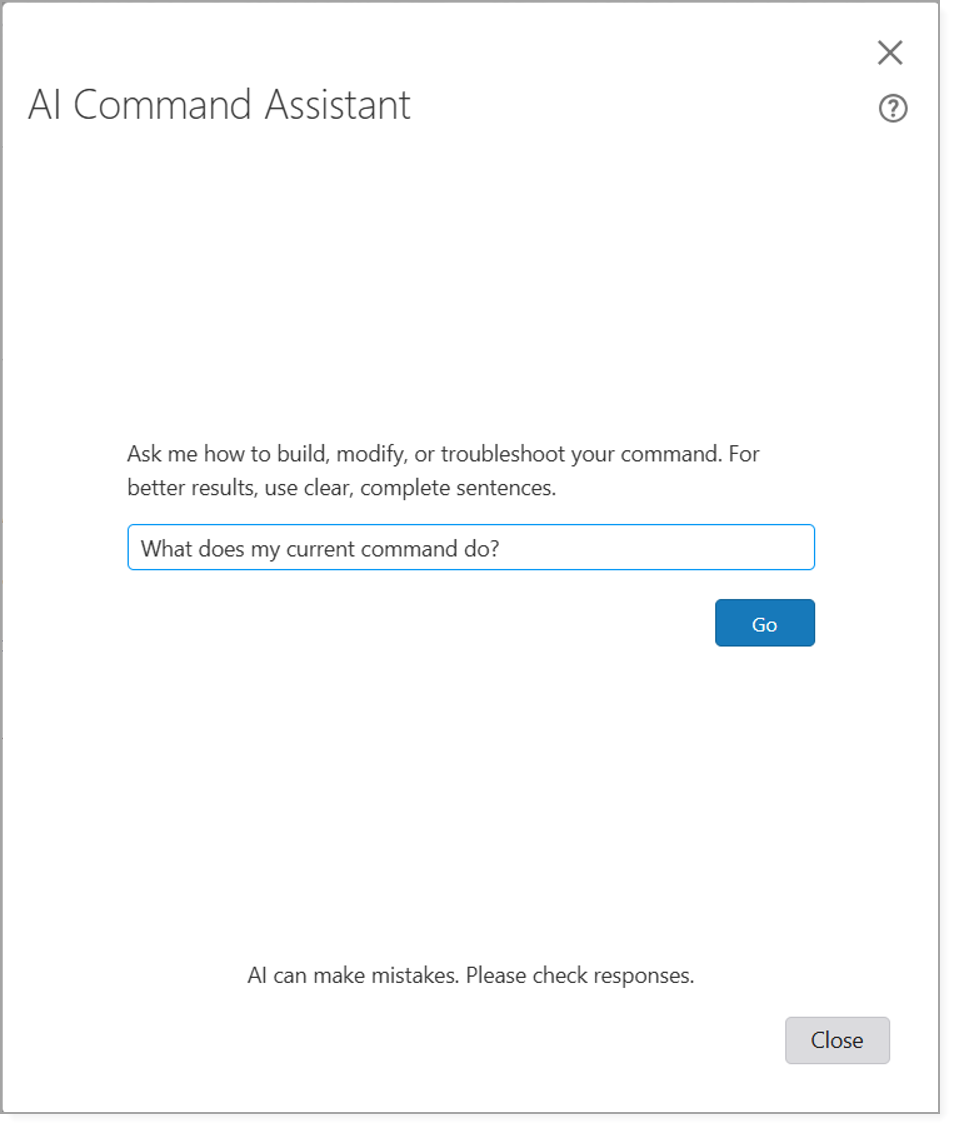
4.Enter a targeted question.
The assistant is strictly constrained to answer questions related to Studio Web commands and operations. General or unrelated questions will not be answered.
For the best results, always format your questions in clear, full sentences.
The following are some examples of use cases:
•Understanding command chains "What does my current command do?" or "Explain the current command to me in a non-technical language."
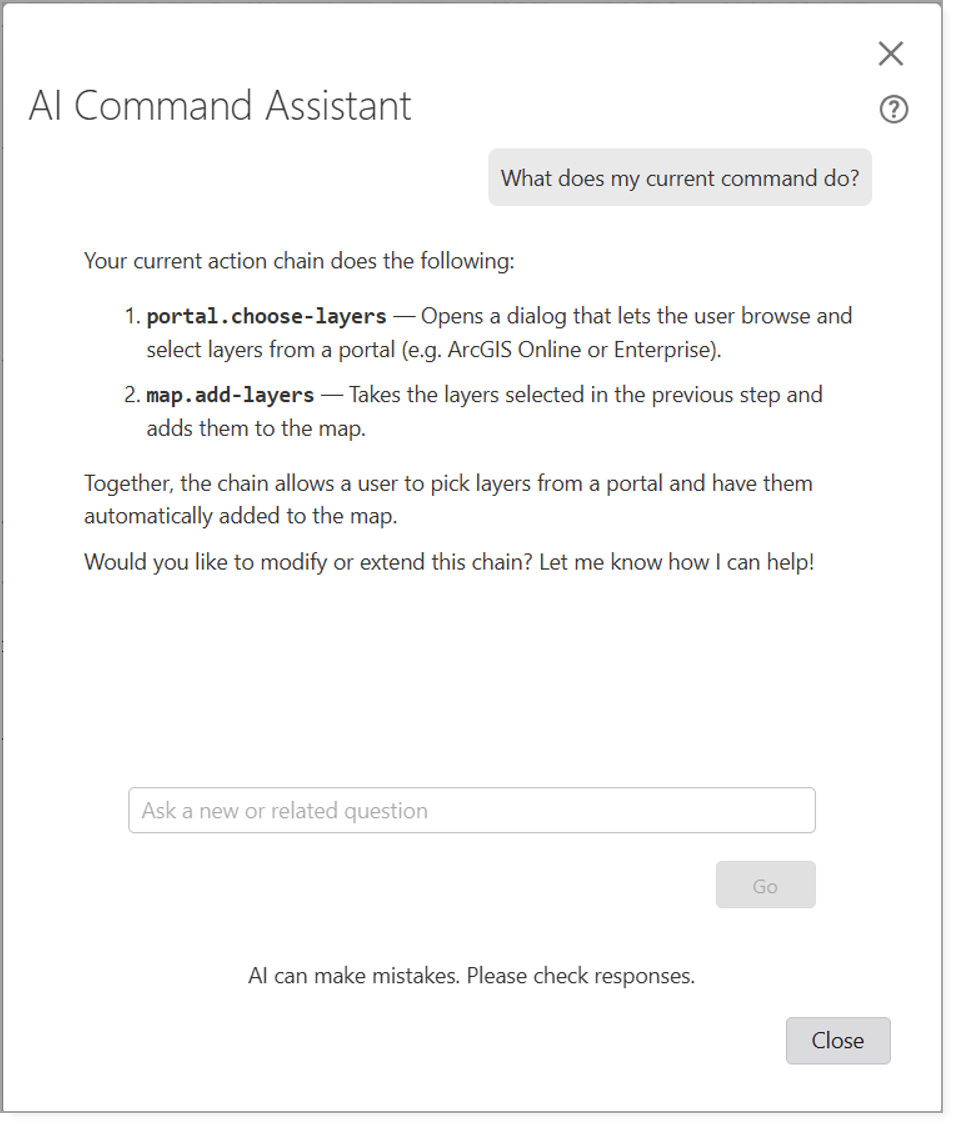
•Configuring functions "How can I change and adapt the symbology of added layers?"
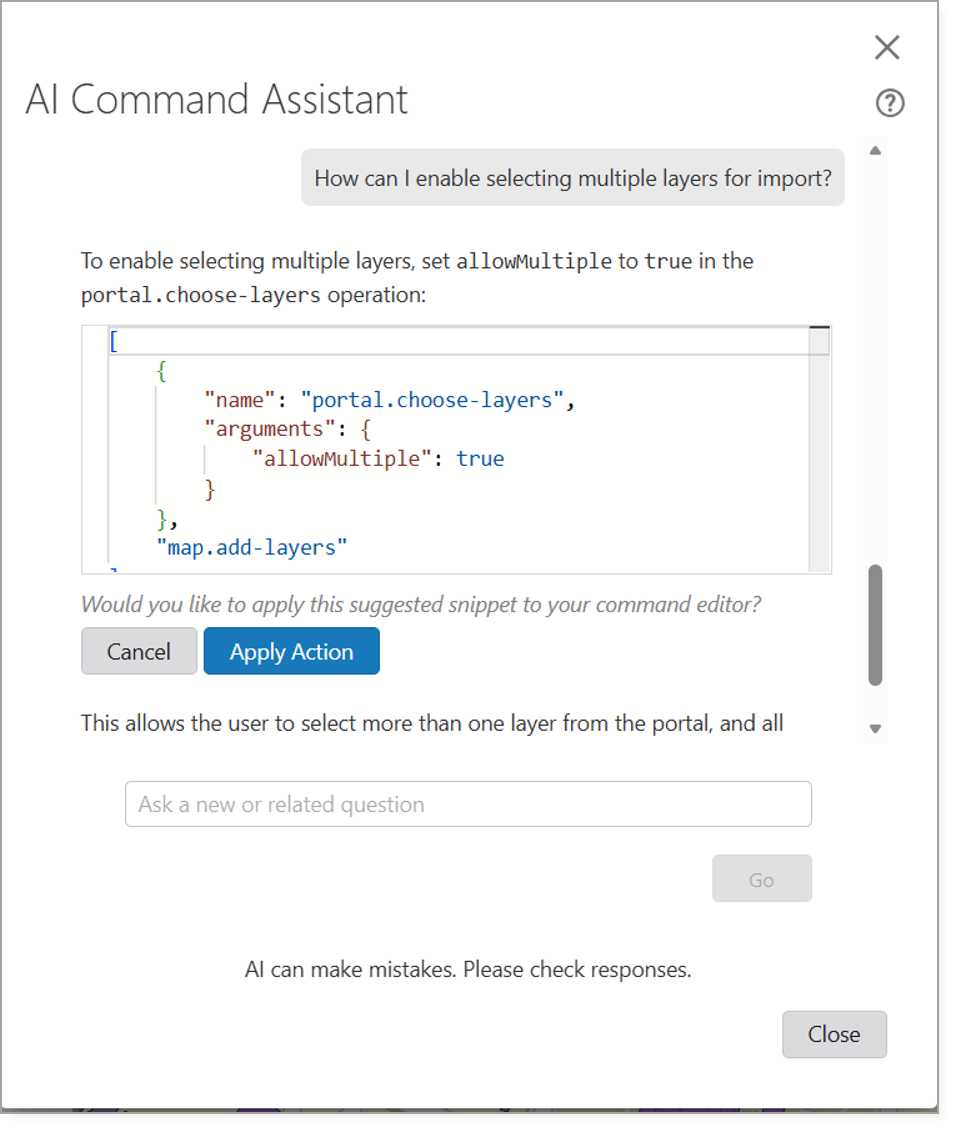
•Modifying command chains "How can I adapt my Add Layers from an Esri portal command to be able to select multiple layers?"
•Troubleshooting "I am getting the error XY, how can I fix it?" or "Why is my changed symbology not applied?"
5.Click Go.
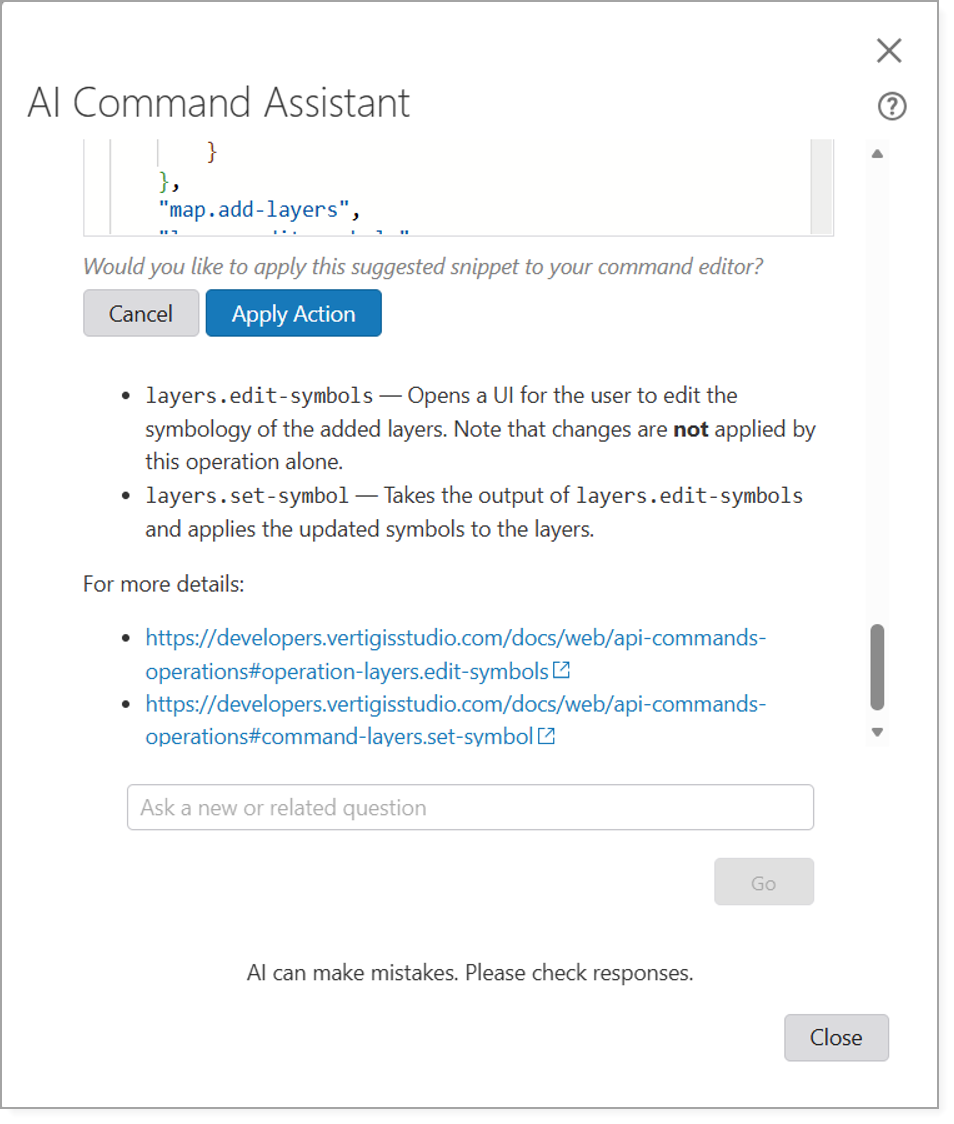
The AI Command Assistant generates an explanation based on your prompt. If the response includes a code snippet, the assistant will ask if you want to apply it.
6.Click Apply Action to apply the code snippet.
The suggested snippet is automatically loaded directly into the Custom Command Editor.
At the end of every response, the assistant provides a hyperlink to the documentation for the individual suggested commands so you can easily verify the details.
AI can make mistakes. Check all responses and test the code. Iterate with troubleshooting questions if needed.