You must configure the Geodata Service before you can add the Import from LPKX command.
A Layer Package (LPKX) is an Esri package file that bundles geographic data together with its layer properties and symbology into a single, portable file with an .lpkx extension.
In Studio Web, importing an LPKX file preserves the styling and layer properties contained in the package, allowing the imported data to appear as intended. Coordinate system handling is performed automatically during the import process.
An LPKX file typically contains:
•A .lyrx file that stores layer properties and symbology.
•A .gdb (File Geodatabase) that stores the underlying geographic data.
As the import process expects a specific internal structure, only LPKX files whose data originates from a File Geodatabase (FGDB) are supported. Layer packages created from other data source types may not import successfully.
To add the Import from LPKX command:
1.Expose the Import from LPKX command through one of the following:
•A Toolbar
•The I want to… menu
•A Button
In our example, we add the Import from LPKX command to the I want to... menu.
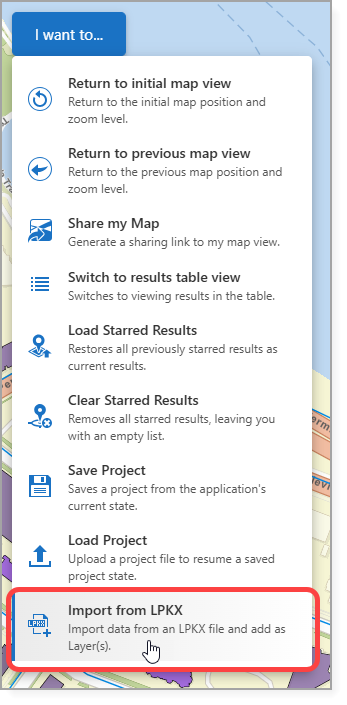
2.Save the app.
Depending on the sharing and security settings configured when the services were published, users may be prompted to provide a username and password when importing a LPKX file.
See Standard Commands for more information on the Import from LPKX command.