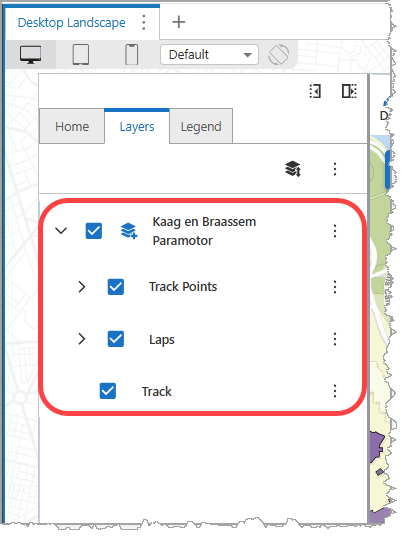
You can add layer data from a Keyhole Markup Language (KML) file to your map. This allows you to visualize geographic data, such as points, lines, and polygons, that may have been created in Google Earth or other GIS applications.
This section explains how to do the following:
1.Add the Import from KML command.
2.Import the KML file.
Add the Import from KML Command
To add the Import from DXF command:
1.Expose the Import from KML command through one of the following:
•A Toolbar
•The I want to… menu
•A Button
In our example, we add the Import from KML command to the I want to... menu.
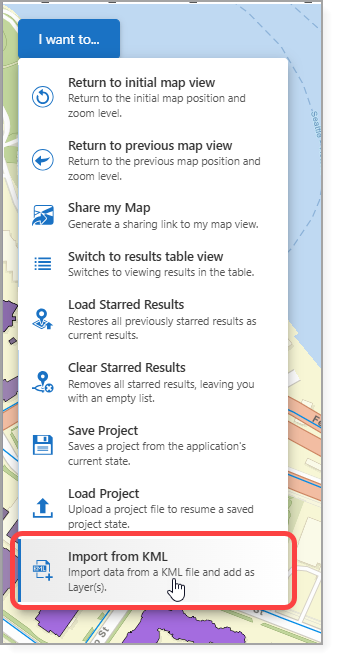
2.Save the app.
See Standard Commands for more information on the Import from KML command.
Import a KML File
To import a KML file:
1.In the app, select Import from KML.
The Select File to Continue window opens.
2.Upload the DXF file.
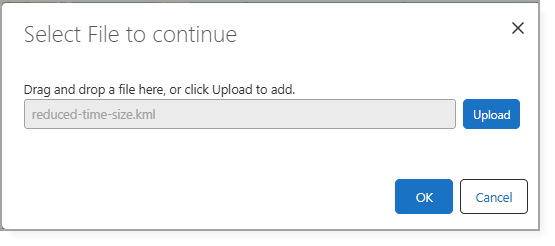
3.Click OK.
The KML file content is automatically organized into the following sublayers:
•Annotations
•Points
•Lines
•Polygons
These sublayers appear in the Layer List and can be toggled on or off independently.