You can configure a layer's menu to include the Layer Style command. This command allows users to modify layer and field symbology to support distinct data visualization.
Studio Web can display layers that use CIM symbology. However, the Layer Style command requires feature layers that are not published with CIM symbols. When publishing feature layers, ensure that the option Use symbol types compatible with all clients is enabled.
When a user clicks Layer Style from the layer's menu, the Edit Symbol window opens and the following tabs are available:
•General (to configure the symbology for the entire layer)
•Thematic (to configure the symbology based on a specific field)
General Symbology
Use the General tab to configure symbology for the entire layer.
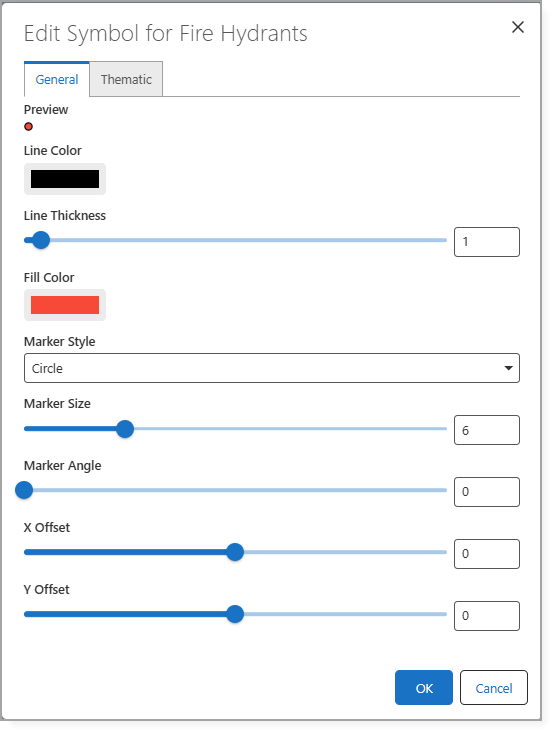
The table below describes the settings that are available in the General tab.
Setting |
Description |
|---|---|
Line Color |
The color applied to the outline or stroke of a line or feature. |
Line Thickness |
The width of the line or stroke (measured in pixels), that controls how bold or thin the line appears. |
Fill Color |
The color used to fill the interior area of a shape. |
Marker Style |
The shape or symbol used to represent point features. |
Marker Size |
The overall size of the marker symbol, usually measured in pixels or points. |
Marker Angle |
The rotation angle of the marker symbol (measured in degrees), used to control its orientation. |
X Offset |
The horizontal displacement of the symbol from its original position, measured along the x-axis. |
Y Offset |
The vertical displacement of the symbol from its original position, measured along the y-axis. |
Thematic Symbology
Use the Thematic tab to configure symbology based on a specific field.
VertiGIS Studio Web supports three configurable symbology methods that can be changed at runtime based on feature attributes:
•Unique Values: Assigns different symbols or styles based on categorized attribute values.
Unique Values symbology is mainly for Feature Layers that have Simple Marker Symbols (esriSMS), Simple Line Symbols (esriSLS), or Simple Fill Symbols (esriSFS).
Feature Layers and Hosted Feature Layers are supported.
Sublayers and Map Image Layers that are rendered server-side are not supported.
•Graduated Color: Applies a color ramp according to numeric attribute ranges.
•Graduated Size: Adjusts symbol sized based on numeric attribute values.
These methods can be used independently or in combination, and allow users to adapt map visualization dynamically without modifying the underlying service.

For example, you can configure multiple symbology methods simultaneously:
•Unique Values to differentiate water line status:
oActive: solid line
oMaintenance: dashed line
•Graduated Color to visualize pipe age:
oOlder pipes: dark blue
oNewer pipes: light blue
•Graduated Size to represent pipe diameter:
oLarger diameters: thicker line weights
oSmaller diameters: thinner line weights
By combining these methods, users can interpret multiple attributes of the same feature layer at a glance.