Description
The Set Form Element Item Property activity assigns a value to an arbitrary property of the specified form element item.
Inputs
Element |
Optional The form element bearing the items, specified as an expression or ID. For example, =$form1.state.itemPicker1 or itemPicker1. Leave Element blank to target the form element that the subworkflow belongs to. |
Item Key |
Required The key of the item to modify. |
Property Name |
Required Type: String The name of the property to modify. |
Property Value |
Optional Type: any The value of the property to assign. |
Markdown |
Optional Type: Boolean Use this to control when values should be considered Markdown. The default is true. |
Outputs
This activity has no outputs.
Properties
For information about the ID, Display Name, and Description properties, see Properties Common to all Activities.
Connectivity Requirements
This activity works when the device has intermittent connectivity to the network.
Example
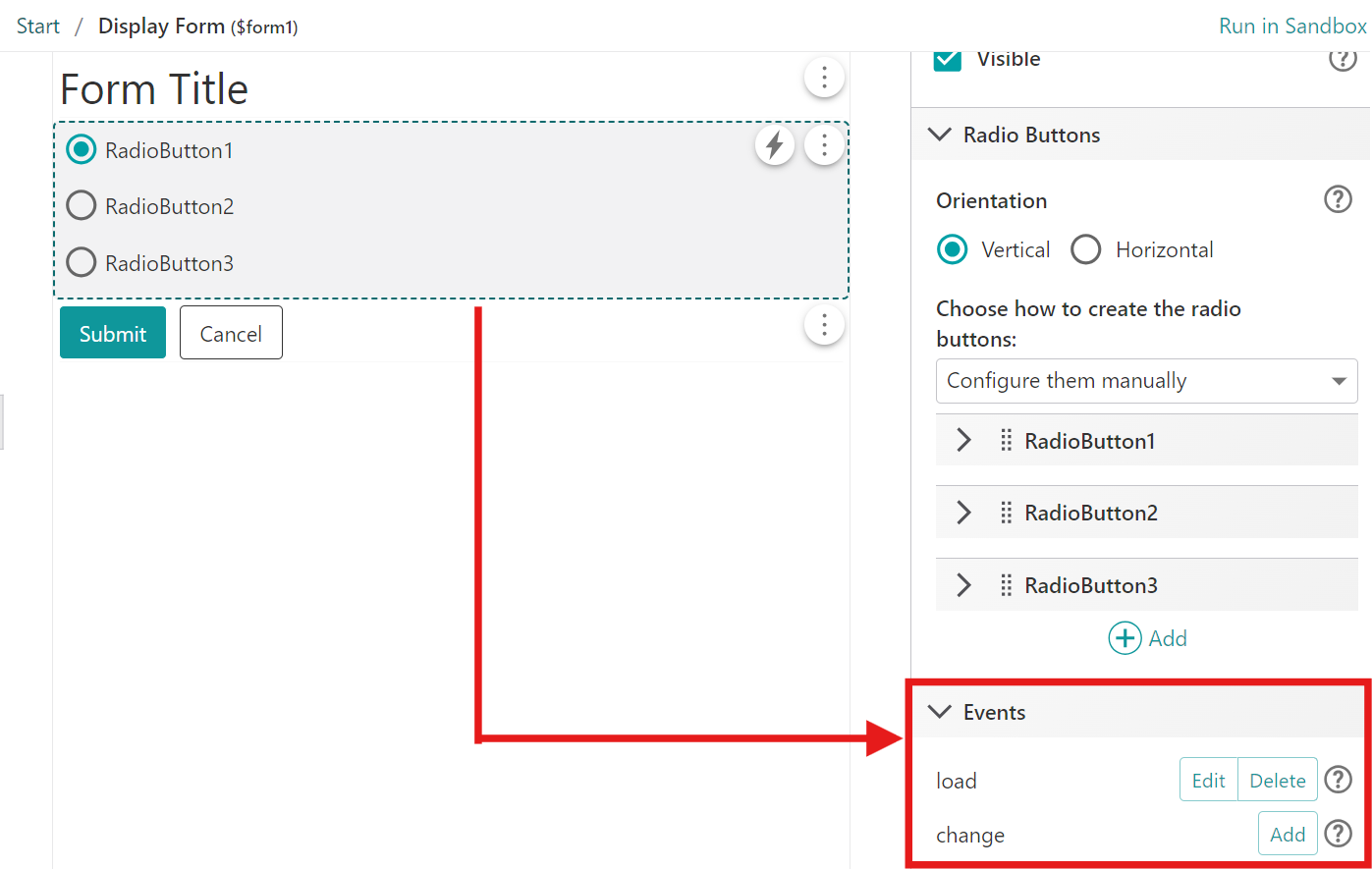
This example updates the label of one radio button when the form opens, using a subworkflow triggered on the Radio Group's load event.
Set up the Form
1.Add a Display Form activity and connect it to the Start activity.
2.Open the form editor and add a Radio Group element. By default it contains three items:
oRadioButton1
oRadioButton2
oRadioButton3
Set up the Subworkflow
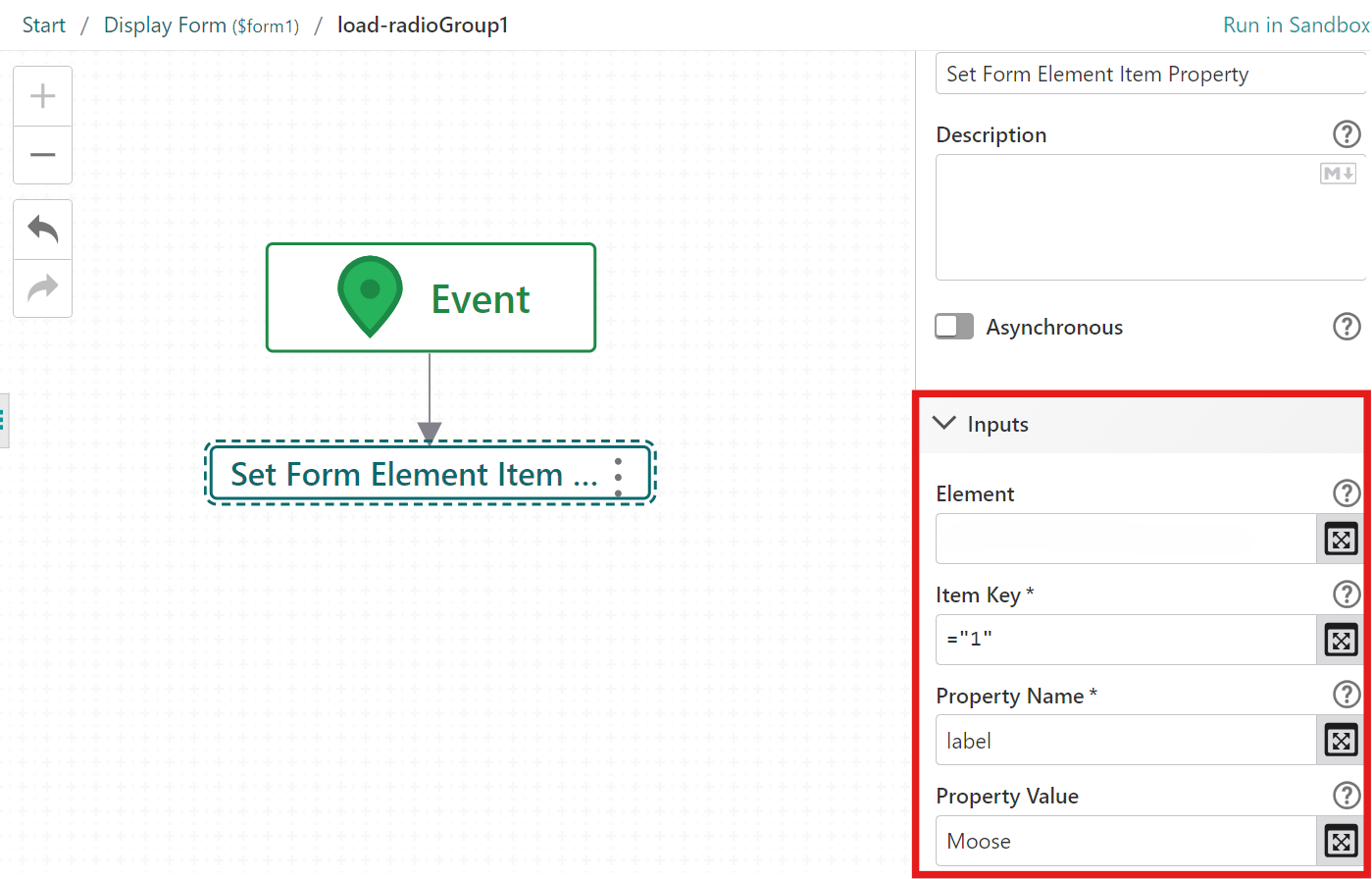
1.In the form editor, select the Radio Group element and open its On Load event to create a subworkflow, which runs automatically when the form loads.
2.Inside the subworkflow, connect a Set Form Element Item Property activity after the Event activity.
3.Configure the options for the Set Form Element Item Property activity:
oItem Key: ="1" (this targets the second item, as keys are zero-indexed strings)
oProperty Name: label
oProperty Value: Moose
When the workflow runs, the form opens and immediately triggers the subworkflow connected to the Load event.
The Set Form Element Item Property activity targets the second radio button and updates its label from RadioButton2 to Moose.
Targeting Items
Use the Item Key input to identify which item to update. Keys are zero-indexed strings corresponding to each item's position in the list, so ="0" is the first item, ="1" is the second, and so on.