Alarms are managed in Settings under the Monitors & Alarms tab for resource groups and individual resources.
Alarms are tied to and exist on a monitor. An alarm will evaluate its condition based on the value of the monitor it is associated with and whenever that monitor's value changes.
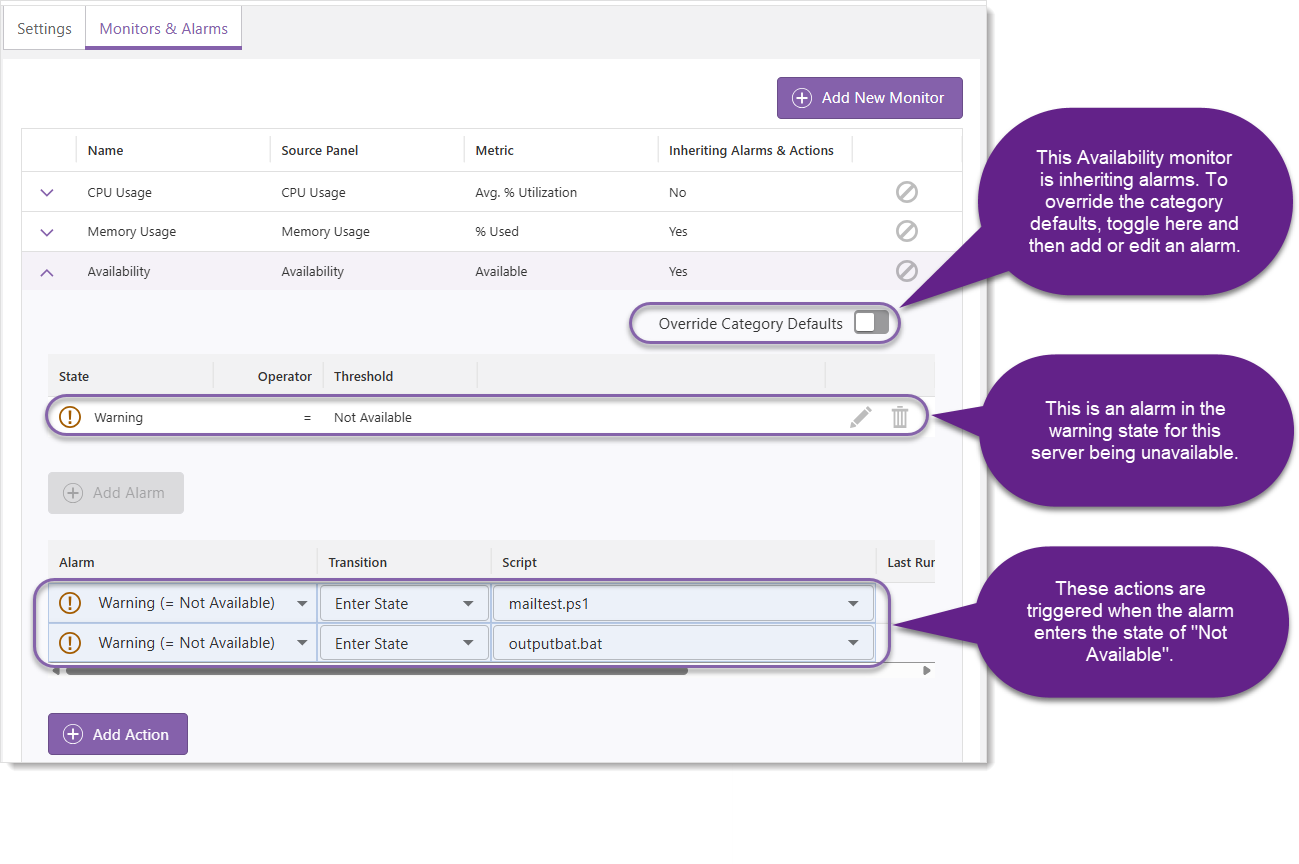
Add a New Alarm
1.While on the Monitors & Alarms tab in Settings, click the down caret for a monitor to expand it.
2.Click Add Alarm. This will create a new row in the Alarms table that can be edited.
3.Define the alarm by modifying the State, Operator, and Threshold (and optionally Occurrences) fields, defined in the table below.
Field |
Description |
|---|---|
State |
The state of the alarm can be either Info, Warning, or Error. |
Operator |
Determines the logical comparison between the monitored metric and the threshold in the filter expression. |
Threshold |
This is the trigger point of the alarm. |
Occurrences |
This field will show for some alarms when appropriate for that resource. It works in conjunction with the Threshold field. If the Occurrences field exists, then the number of occurrences, as well as the Threshold values must be met to trigger an alarm. |
4.Click the save icon ( ).
).
If the monitor is for an individual resource that is inherited from the category default monitors and the alarms are currently being inherited, you will not be able to add any alarms to the monitor. Instead, you can either add the alarm to the category default monitor, which will effect all resources in that resource group, or override the alarm inheritance on the individual resource you want to change.
To configure an alarm that triggers when a specific server is unavailable:
1.Create a monitor for the available metric of the Availability panel. See To configure a monitor that tracks when a specific server is unavailable.
2.Open Settings and click the Servers resource group.
3.Click a specific server in the resource group.
4.In the Monitor & Alarms tab, click the down caret for the Availability panel.
5.Click Add Alarm.
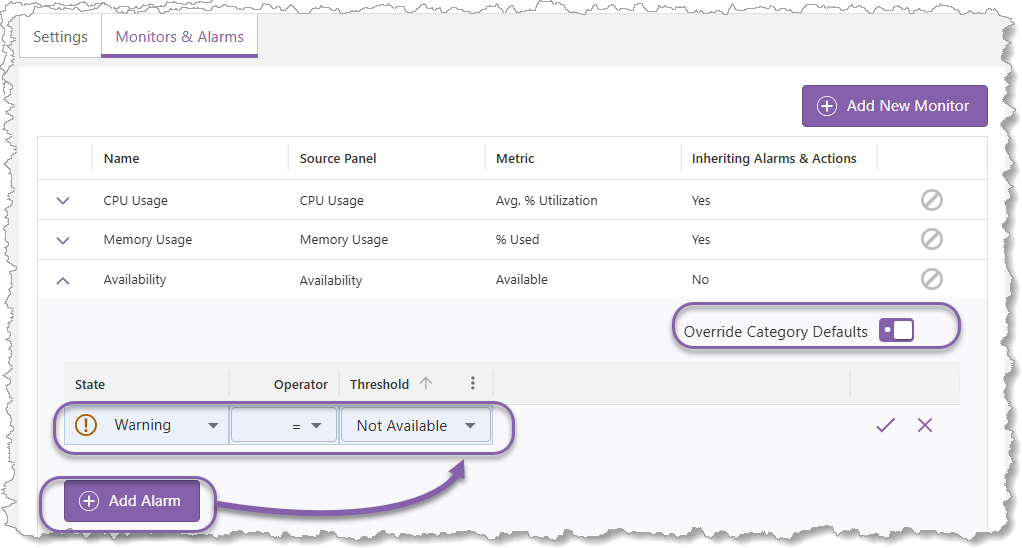
6.OPTIONAL: Enable the Override Category Defaults switch. This setting allows you to set alarms for specific resources. When setting alarms with the Override Defaults enabled, the alarm (and Actions) only affects the specific resource.
7.Ensure that the State field is set to 'Warning'.
8.Ensure the Operator field is set to '='.
9.Ensure the Threshold field is set to 'Not Available'.
10.Click the check icon to save the alarm. When an alarm is added, the Monitor will be reevaluated and the new state set according to the new alarm configuration.
Edit an Alarm
To edit an existing alarm on a monitor, click the edit icon ( ) in the same row as the alarm. This will cause the row to enter an editing mode similar to when adding a new alarm, allowing you to edit the alarms details. When finished, click the save icon () to save the changes, or the cancel icon (
 ) to leave the alarm as previously configured.
If the monitor is for an individual resource that is inherited from the category default monitors and the alarms are currently being inherited, you will not be able to edit any alarms from the monitor. Instead you can either edit the alarm from the category default monitor, which will effect all resources in that resource group, or override the alarm inheritance on the individual resource you want to change.
Remove an Alarm
To remove an alarm from a monitor, click the delete icon ( ) in the same row as the alarm. A dialog will appear asking if you're sure you want to remove the alarm, click Delete to remove the alarm, or Cancel to leave the alarm as configured.
If the monitor is for an individual resource that is inherited from the category default monitors and the alarms are currently being inherited, you will not be able to remove any alarms from the monitor. Instead you can either remove the alarm from the category default monitor, which will effect all resources in that resource group, or override the alarm inheritance on the individual resource you want to change.
The historical record of the alarm is maintained when the alarm is removed, allowing you to view the historical information related to this alarm in Reports.