There are four types of multi-page prints available: Line, Grid, Time Series, and Range Series.
Line Print
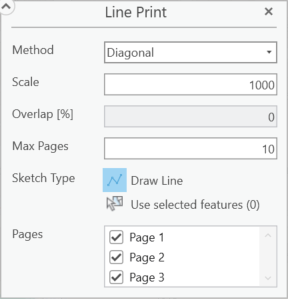
A Line print generates multiple pages based on a line drawn on the map.
Setting |
Description |
|---|---|
Method |
Allows either Standard or Diagonal to be selected. Diagonal ensures no gaps in the map print out. Standard allows you to control the level of overlap with the Overlap [%] field. |
Scale |
Sets the level of zoom for the map printout. See scale. |
Overlap [%] |
Specifies the percentage of overlap between adjacent pages when printing a map across multiple pages. |
Max Pages |
Defaults to a value of 10. This controls the maximum number of pages that will print. In the following example, more than 10 pages are needed to include the entire line in the print area definition.  |
Sketch Type |
This denotes the method used to determine the print area. For a line print, this is determined by a multi-segmented line The Drawing tool only shows when performing an Infinite print or a Line print. The print area is defined by the drawn shapes on the map. |
Pages |
The number of pages needed for the print is automatically determined. You can deselect unwanted pages from the list. |
 . To finish building the shape, the last point selected should be a double-click.
Grid Print
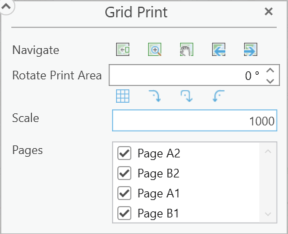
A Grid print generates one or more pages based on the current extent and the Scale parameter.
Setting |
Description |
|---|---|
Navigate |
•Move print area to current extent - The defined print area is moved to the current map view and centered both horizontally and vertically. •Zoom to print area - Pans and zooms the map so that the defined print area is comfortably centered. •Pan to print area - Pans the map so that the defined print area is comfortably centered. •Previous extent - Toggles backwards through the list of previous map extents. •Next extent - Toggles forward through the list of previous map extents. |
Rotate Print Area |
Change the orientation of the print area. Positive numbers rotate counterclockwise while negative numbers rotate clockwise. Fractions of a degree can be used, but using the up and down arrows increments by a value of 1. •Match area rotation to grid - Rotates the print area to match the grid. •Rotate 90º clockwise - Print area is rotated 90 degrees clockwise. •Rotate 180º - Print area is rotated 180 degrees. •Rotate 90º counter clockwise - Print area is rotated 90 degrees counterclockwise. |
Scale |
Sets the level of zoom for the map printout. See scale. |
Pages |
The number of pages needed for the print is automatically determined. You can deselect unwanted pages from the list. |
Time Series Print
Setting |
Description |
|---|---|
Navigate |
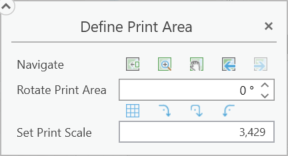
•Move print area to current extent - The defined print area is moved to the current map view and centered both horizontally and vertically. •Zoom to print area - Pans and zooms the map so that the defined print area is comfortably centered. •Pan to print area - Pans the map so that the defined print area is comfortably centered. •Previous extent - Toggles backwards through the list of previous map extents. •Next extent - Toggles forward through the list of previous map extents. |
Rotate Print Area |
Change the orientation of the print area. Positive numbers rotate counterclockwise while negative numbers rotate clockwise. Fractions of a degree can be used, but using the up and down arrows increments by a value of 1. •Match area rotation to grid - Rotates the print area to match the grid. •Rotate 90º clockwise - Print area is rotated 90 degrees clockwise. •Rotate 180º - Print area is rotated 180 degrees. •Rotate 90º counter clockwise - Print area is rotated 90 degrees counterclockwise. |
Set Print Scale |
Sets the level of zoom for the map printout. See scale. |
Range Series
Setting |
Description |
|---|---|
Navigate |
•Move print area to current extent - The defined print area is moved to the current map view and centered both horizontally and vertically. •Zoom to print area - Pans and zooms the map so that the defined print area is comfortably centered. •Pan to print area - Pans the map so that the defined print area is comfortably centered. •Previous extent - Toggles backwards through the list of previous map extents. •Next extent - Toggles forward through the list of previous map extents. |
Rotate Print Area |
Change the orientation of the print area. Positive numbers rotate counterclockwise while negative numbers rotate clockwise. Fractions of a degree can be used, but using the up and down arrows increments by a value of 1. •Match area rotation to grid - Rotates the print area to match the grid. •Rotate 90º clockwise - Print area is rotated 90 degrees clockwise. •Rotate 180º - Print area is rotated 180 degrees. •Rotate 90º counter clockwise - Print area is rotated 90 degrees counterclockwise. |
Set Print Scale |
Sets the level of zoom for the map printout. See scale. |