Composite labeling allows you to generate and place free text for features on the current map. The free text consists of a base section that displays expressions or specific attribute values of the feature. If the underlying feature class supports relations, data from the assigned objects can also be included in the free text.
Configuration
Configure Composite Labeling through the properties of the target layer.
To configure Composite Labeling:
1.Locate the target layer in the Contents pane under the Drawing Order tab.
2.Right-click it to open the context menu.
3.Select Properties to open the layer settings dialog.
4.Select Composite Labeling to manage free text placement settings.
To use composite labeling, the target layer must have connected annotation feature classes. If no corresponding annotation feature class is found, composite labeling remains unavailable.
See Create annotation feature classes.
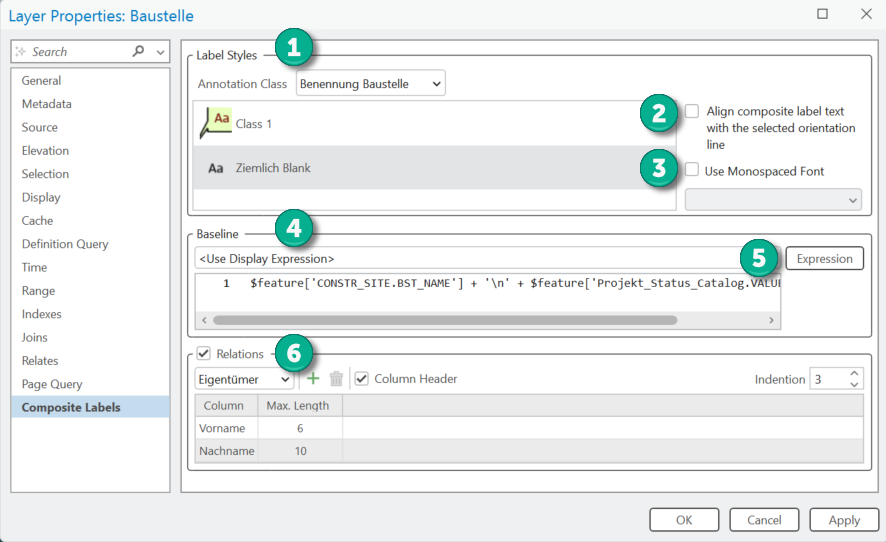
1) Label Styles
The Composite Labeling configuration supports labeling using a single feature-linked annotation for the target layer. All style items for the active annotation class are listed at the top of the dialog. The configuration defines a style name. If a matching style name is found in the list, it is automatically selected.
2) Set Alignment
Check Align... to align the free text along the selected line feature during label creation. If this box is unchecked, the label is oriented horizontally.
3) Use Monospaced Font
Check this setting to use a monospaced font for labeling. A monospaced font improves readability, especially when labeling expressions include related objects.
4) Baseline
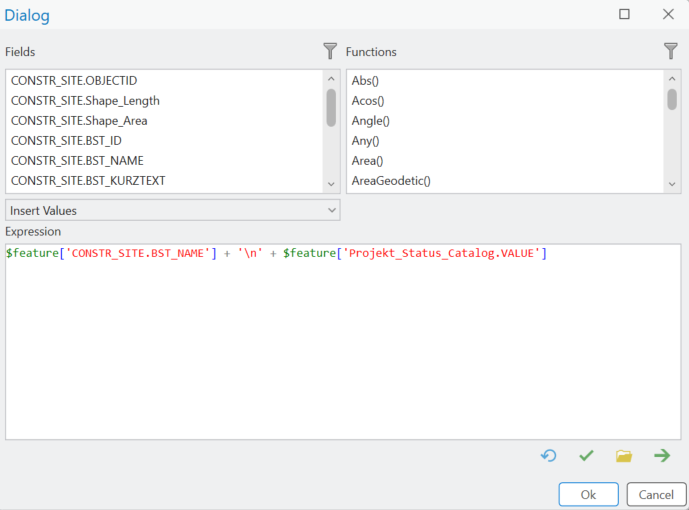
The free text for the label consists of a string generated from either a specific attribute or an Arcade expression. If an attribute is selected, the label pulls the text directly from that feature's attribute value at runtime. If an expression is defined, the Arcade expression is evaluated when the label is generated.
5) Expression
To use an expression for composite labeling, select <Use Display Expression> from the drop-down list and click Expression. This opens an editor where you can manage the expression.
6) Relations
If the underlying feature class supports relationships, you can also use the attribute values of related objects for label generation. Check Relations and select the appropriate relationship class to display related attributes in the composite label. Use the Add (+) and Delete (trash can) icons to add or remove related class columns from the label generation configuration.

Select a relationship class from the drop-down list to add or remove attributes for the label. Click the Add (+) button to insert a new attribute row into the column list. Click inside the Column field and select the specific relationship class column you want to display.
7) Add Column Headers
Check Column Header to prepend the list of related attributes with a row of column headers.
8) Indention
Use Indention to define the indent for related attribute values.