You can remove a component in two ways:
•Remove a component from the root of the Components panel
•Remove a component while viewing its settings
To remove a component from the root of the Components panel:
1.While editing your app in Designer, in the Components panel, begin dragging the component you want to remove downwards.
The Remove Component section appears.
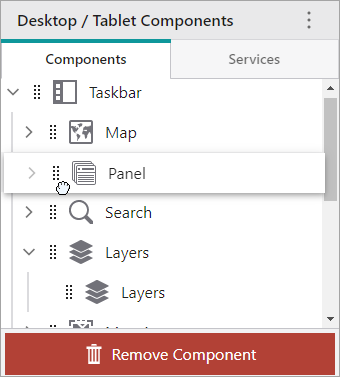
2.Drag the  beside the component you want to remove into the Remove Component section.
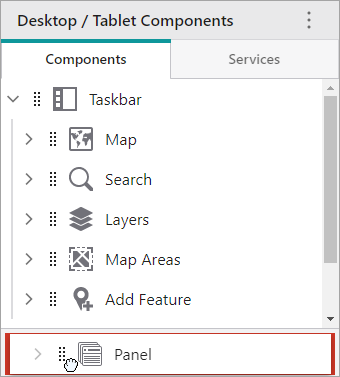
If the component contains other components, you are asked to confirm whether you want to remove the component and all the components it contains, if so, click Yes, delete.
The component is removed from your layout.
To remove a component while viewing its settings:
1.While editing your app in Designer, in the Components panel, click the component you want to remove.
The settings for that component appears.
2.At the top right of the component panel, click the three-dot menu ( ).
).
The component's configuration options menu appears.
3.Click Remove Component.
If the component contains other components, you are asked to confirm whether you want to remove the component and all the components it contains, if so, click Yes, delete.
The component is removed from your layout.
