It is possible to copy component and service configuration from other apps and templates to replace existing configuration in your own app. You can Get Configuration from a single or multiple components.
If you want to import a component (and all components within it) into your app as a new component, see Import a Component.
Get Configuration for a Single Component or Service
When you want to copy a single component or service, you first open the component or service you want to change. You then import the configuration for that component or service from either a template or an existing app and overwrite the open component or service.
You access the Get Configuration option from the three-dot menu at the top-right of a particular component or service's panel.
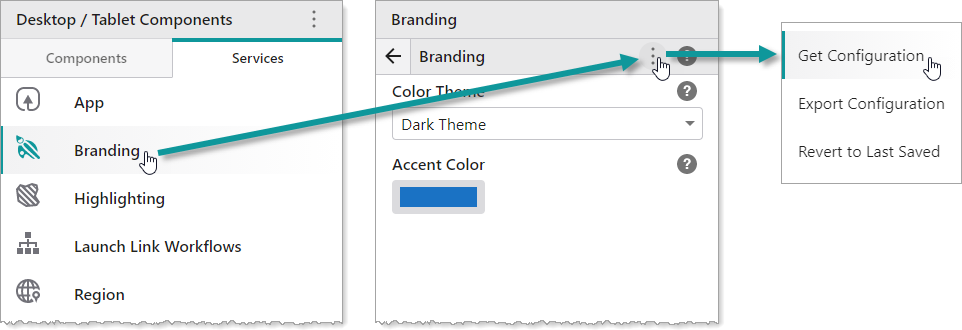
Get Configuration for a single component is in the options menu of a particular component's panel
Get Configuration for Multiple Components or Services
When you want to copy the configuration of multiple components or services, you must ensure you are at the highest level of the Components or Services panel.
To ensure that you are at the highest level, click the back arrow  in any component or service panels that are open.
You then select multiple components or services, and overwrite the components or services of the currently open app with the imported configuration.
You access the Get Configuration option from the three-dot menu at the top-right of the root Components or Services panel.
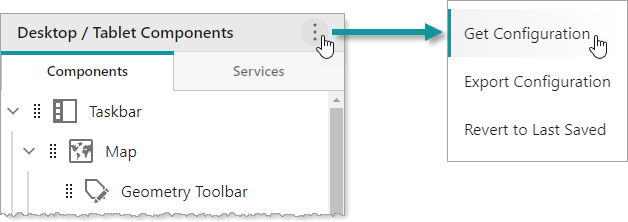
Get Configuration for multiple components is in the options menu of the root Components panel
To get configuration for a single component or service:
1.In Mobile Designer, in the Components or Services panel, click the component or service whose configuration you want to change.
2.At the top-right of the panel, click the three-dot menu > Get Configuration.
A dialog appears where you can select a template or an existing app from which to import configuration.
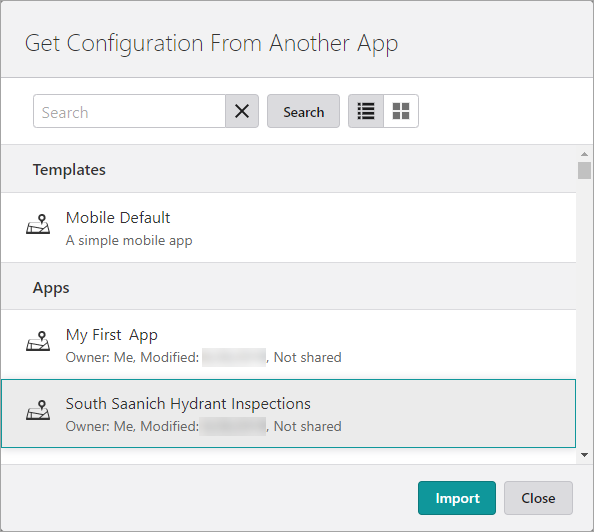
3.Select the template or app, and then click Import.
If you are unable to see the app you want to use, type the name of it into the Search box, and then click Search.
A dialog appears where you can select the components and services from which to import configuration.
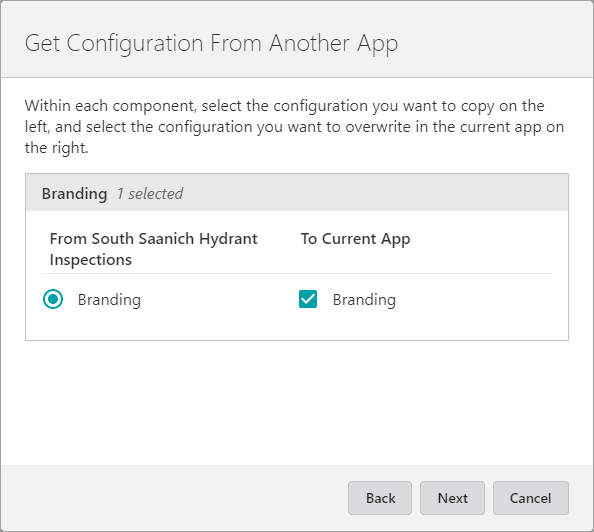
4.In the left column, select the component or service that contains the configuration you want.
5.In the right column, select the component or service whose configuration you want to overwrite.
6.Click Next.
7.Review the changes that will be applied, and then click Apply.
The selected configuration is imported.
8.Click File > Save.
To get configuration for multiple components or services:
1.In Mobile Designer, close any component or service panels that are open except for the component or service list.
The menu icon appears in the Components or Services panel.
2.Click the three-dot menu > Get Configuration.
A dialog lists the template or apps from which you can import configuration.
If you cannot see the app you want to use, type the name of it into the Search box, and then click Search.
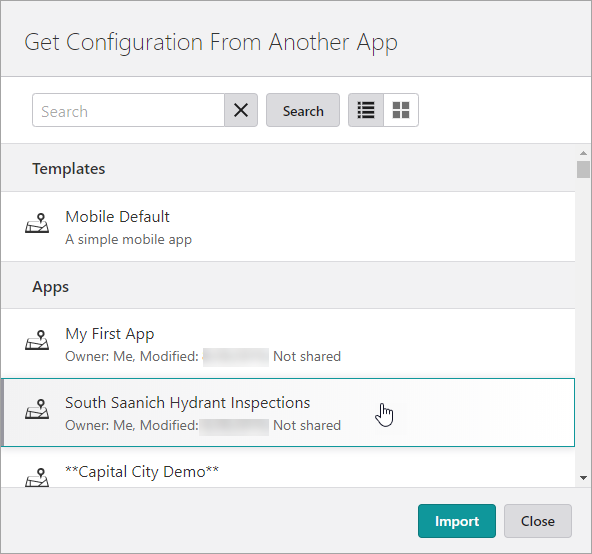
3.Select the template or app whose configuration you want, and click Import.
A dialog appears where you can select multiple components and services.
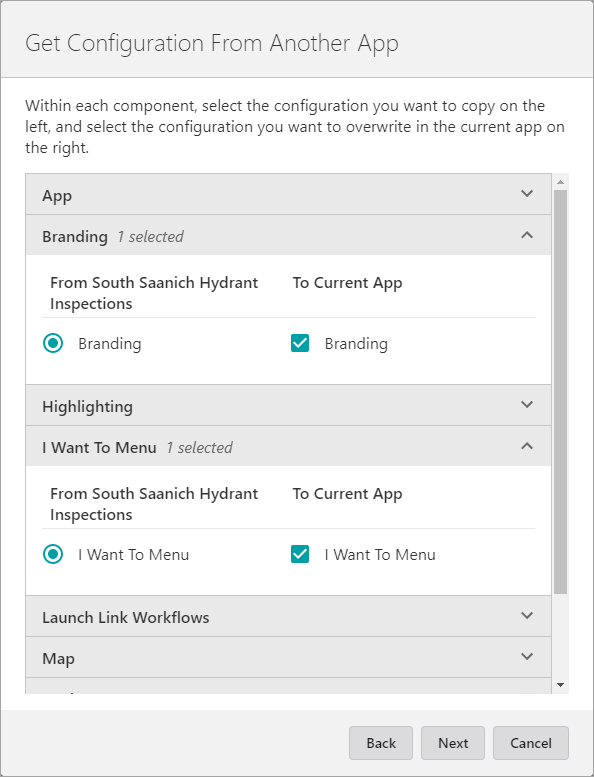
4.In the right column, select the components or services whose configuration you want to copy.
5.Click Next.
6.Review the changes to be applied, and then click Apply.
The selected configuration is imported.
7.Click File > Save.
