This section explains the following:
For an explanation of controls see Controls.
For more information on each type of control, see the Control Reference
Add a Control
To add a control to a print layout, drag the control from the Control Bar to a band that will contain controls, like the Detail band. Scroll the Control Bar to see more controls.
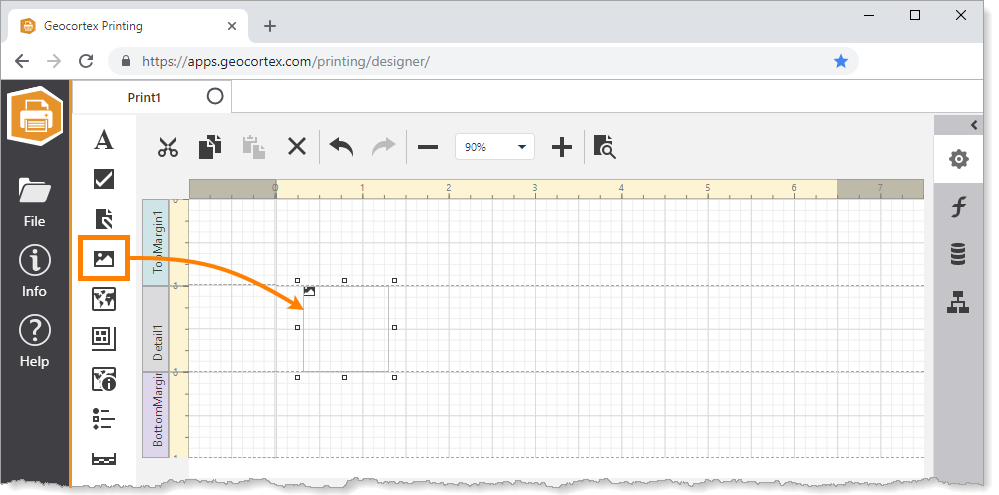
Drag a control from the Control Bar and drop it on a band
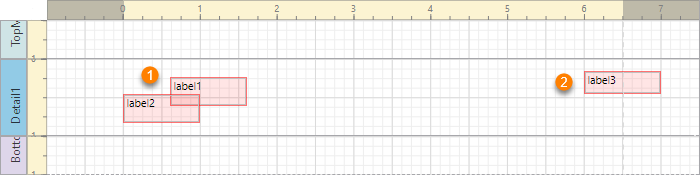
If two controls overlap each other in the layout ( ), they are shaded red.
Similarly, if a control spans a band or margin boundary ( ), the control is shaded red.
Select a Control
Use any of the following methods to select a control:
▪Click the control on the design surface.
To select multiple controls, hold down the Ctrl key on your keyboard while selecting the controls.
▪Drag across the control on the design surface.
To select multiple controls, drag across multiple controls.
▪Select the control in the Properties panel  or in Print Layout Explorer
  .
.
When a control is selected, its handles show.
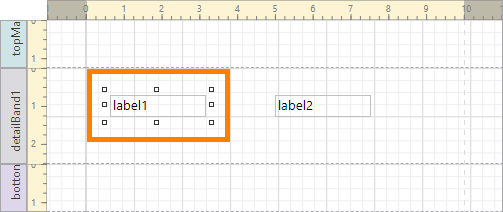
Selected Label control
Delete a Control
To remove a control from a print layout, select the control and press Delete on your keyboard or click Delete  in Print Layout Explorer.
Deleting a Panel control or Table control deletes the controls in the panel or table.
Control Properties
All control settings can be configured in the Properties panel. To configure a control's properties, first select the control. The Properties panel shows the properties for the currently selected control. For more information about a control's properties, see the Control Reference.
Some settings can also be configured in the layout. For example, you can double-click a Label control in the layout and type the text directly into the control.
