The key concepts in this section include the following:
Print Layout
A print layout is a formatted presentation of a map. Print layouts are created by print authors (administrators) and shared with end users to create on-demand, printable maps of the user's current session.
End users run print layouts from web applications that the author has configured to host the templates (host applications). The print output is typicall a PDF. Additionally, a singe page print output can also be generated in the following formats: AIX, BMP, EMF, EPS, GIF, JPG, PNG, PNG32, SVG, SVGZ, TGA, TIFF.
Print layouts are designed using VertiGIS Studio Print Designer or VertiGIS Studio Desktop Printing. You can either create a layout from scratch, or you can use one of the preconfigured templates offered by Print Designer.
Print layouts are saved as a portal item in the content area of the author's ArcGIS account. Access to the print layout is controlled by sharing the ArcGIS item.
See also...
Print Layout Package
A print layout package is a collection of print layouts that work together to produce a structured, multi-page PDF document. Print authors (administrators) create layout packages and share them with end users, who can generate a PDF document from their current map session.
Print layout packages are created in VertiGIS Studio Print Designer or VertiGIS Studio Desktop Printing. When creating a package, authors specify which layouts to include and the order in which they appear in the final document.
Each layout in a package is assigned a layout type (.pagx), which defines its role in the final PDF document. Studio Printing supports four layout types:
•Cover: A title or introductory page.
•Default: The primary map page. This is the only layout type that can be printed as a single page.
•Overview: An overview map that provides additional geographic context.
•Legend: A page containing the map legend.
A layout packages typically combines several layout types (for example, a Cover page, one or more Default map pages, an Overview page and one more more Legend pages) to produce a single pdf document.
The layout's type is determined by a required type keyword in the .pagx file. In general, only Default layouts can be printed as a single page. Cover, Overview and Legend layouts can only be printed if they are part of a MapBook or a Layout Package.
Each layout type has specific requirements that must be met to qualify for that type.
These requirements are validated when layout sharing is initialized in Studio Desktop or Studio Printing Designer. If a layout does not meet the requirements for its assigned type, the sharing process is aborted.
Print Layout Type Requirements
Layout Type |
Requirement |
Cover Page |
•Must not contain any layout element of type Map Frame. •Must not contain any layout element of type Table Frame. |
Overview Page |
•Must contain a main Map Frame element (named WEBMAP_MAP_FRAME). •The given Map Frame element must not relate to a map. •Must not contain any layout element of type Table Frame. |
Default Page |
•must contain a main Map Frame element (named WEBMAP_MAP_FRAME). •the given "Map Frame" element must not relate to a map. |
Legend Page |
•Must contain a layout element of type Legend. •The element of type Legend must relate to the hidden Map Frame element. •Must not contain any layout element of type Table Frame.
Deprecated Requirements: •Must contain a hidden main Map Frame element (named WEBMAP_MAP_FRAME). •the given Map Frame element must not relate to a map. While Studio Desktop still checks for the presence of this hidden Map Frame, that check has been removed in the Studio Printing Designer because the Printing Engine now creates the Map Frame on the fly. |
See also…
VertiGIS Studio Printing Engine
The VertiGIS Studio Printing Engine generates print output from ArcGIS Pro-based print layouts.
The Printing Designer and Printing Engine perform different roles. The Printing Designer provides the tools used to create and manage print layouts, while the Printing Engine processes print requests and renders the resulting output.
For on-premises deployments, the Printing Engine builds on the ArcGIS Server print utility and runs as a geoprocessing service in ArcGIS Server. It is not a standalone application that users open or run directly.
Applications such as VertiGIS Studio Web and Studio Desktop submit print requests to the Printing Engine. The Engine processes the map and layout information contained in the request and generates the print output.
For information about deploying the Engine in an on-premises environment, see Install VertiGIS Studio Printing Engine.
VertiGIS Studio Print Designer
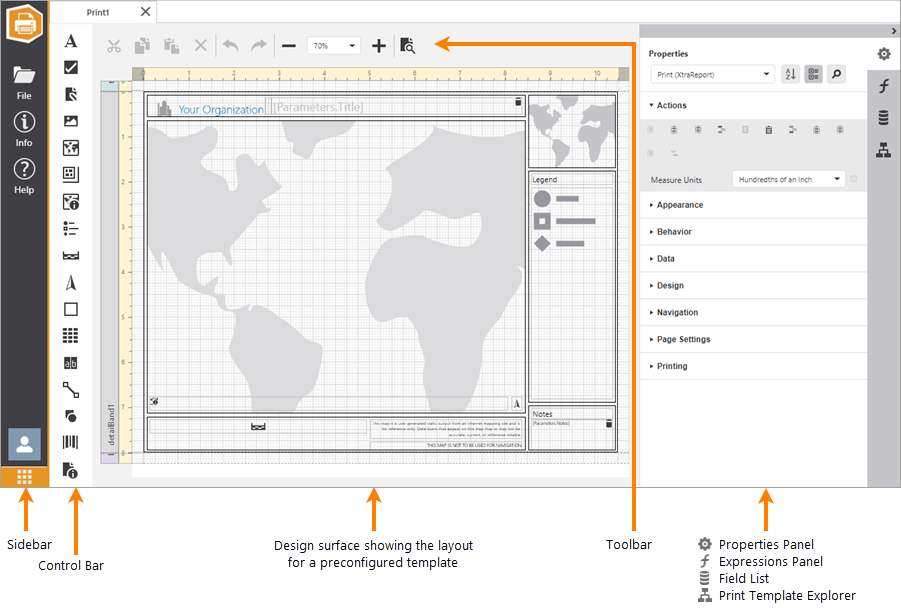
VertiGIS Studio Print Designer provides an extensive suite of tools for laying out print templates. You can add map components like a scale bar, legend, overview map, and north arrow, include descriptive text and images, and brand the print template.
Print Designer has a built-in Preview environment for running print templates. Using the Preview is the quickest way to verify a print template's layout while you are designing it. For more information on all the features available in the interface, see Print Designer Interface Elements.
Printing Functionalities
VertiGIS Studio Printing supports a range of print types and layout sources across different clients.
The table below provides an overview of which printing capabilities are available in each client,
Print Type |
ESRI |
Studio Web |
Studio Desktop |
Studio Experience Builder |
WebOffice |
Web AppBuilder |
Single |
yes |
yes |
yes |
yes |
yes |
yes |
Grid |
- |
yes |
yes |
yes |
yes |
- |
Line |
- |
yes |
yes |
yes |
yes |
- |
Infinity / Seamless |
- |
yes |
yes |
yes |
yes |
- |
Time / Range Series |
yes |
yes |
yes |
yes |
- |
- |
Map Book |
- |
- |
yes |
- |
- |
- |
Layout Source |
||||||
Portal Item |
yes |
yes |
yes |
yes |
- |
- |
Folder Datastore |
yes |
- |
- |
- |
yes |
yes |
Host Applications
A host application is a web application from which users can run VertiGIS Studioprints.
VertiGIS Studio Printing supports the following types of host applications:
•VertiGIS Studio Web
•VertiGIS Studio Desktop
•ArcGIS Experience Builder
See also...
Bands
Print templates are divided into horizontal and vertical sections called bands. When you create a new print template, it has bands for the top margin, the bottom margin, and a Detail band in the middle. Detail bands are used to display the print's details.
When a band is empty (contains no controls or content), it is omitted from the report output.
For example, you can set the Print On property of the Page Footer band to Not With Report Header to prevent it from printing on the page that includes the Report Header band. This is useful when you want to omit items like page numbers from that page. However, if the Report Header band is empty, the Not With Report Header setting is not applied, and the information appears on the first page.
Required Bands
Every print template has the following bands:
▪Top Margin, Bottom Margin: The Top Margin and Bottom Margin bands reserve areas at the top and bottom of the page. The Margin bands appear on every page of the report.
▪Detail Band: The Detail band contains controls, each of which defines something to include in the print, such as the map from the user's session, the legend, or a scale bar.
You cannot delete the Top Margin, Bottom Margin, or Detail band.
See also...
Controls
A control is an element that you add to a print template to present a particular piece of information. For example, the Map control presents the map from the user's current session, the Legend control presents the legend, and so on. Controls can be static or dynamic. A static control gets its value when you design the print template. A dynamic control gets its value when the print template runs. For example, Label controls that contain print inputs are dynamic controls.
See also...
Parameters
You can configure print templates to take inputs from the user at run time. This is useful if you want to allow the end user to supply a custom title, notes, or other text to include in the print output.
To configure a print template to take an input, you add a parameter to the template. The parameter acts as a placeholder for print content that gets its value when the print runs.
See also...
