The Get Started tutorial shows you how to create a print layout based on a preconfigured layout, modify the layout, share it, configure an application to host it, and run the print.
VertiGIS Studio Print Designer offers a variety of preconfigured layouts that are based on standard paper sizes, including ISO and ANSI sizes. For example, Print Designer has an A4 Landscape, ANSI E Landscape, and 11 x 17 Landscape layout, among others.
The preconfigured layouts do not require any modification. You can open a preconfigured layout, save it, host it, and run it to print the host application's map. In practice, you will adapt the layout to your needs by branding it and making whatever other modifications you want. In particular, you may want to:
▪Modify the Logo: Replace the default logo with your organization's logo. Resize and reposition the logo control and surrounding controls as needed to fit your logo. For instructions, see Step 2: Brand the print layout in the Get Started tutorial.
▪Add Map Info Controls: The preconfigured layouts have a single Map Info control that shows the map's attribution. To show additional types of information, add and configure additional Map Info controls.
All the preconfigured layouts use the same layout, shown in the screen capture below.
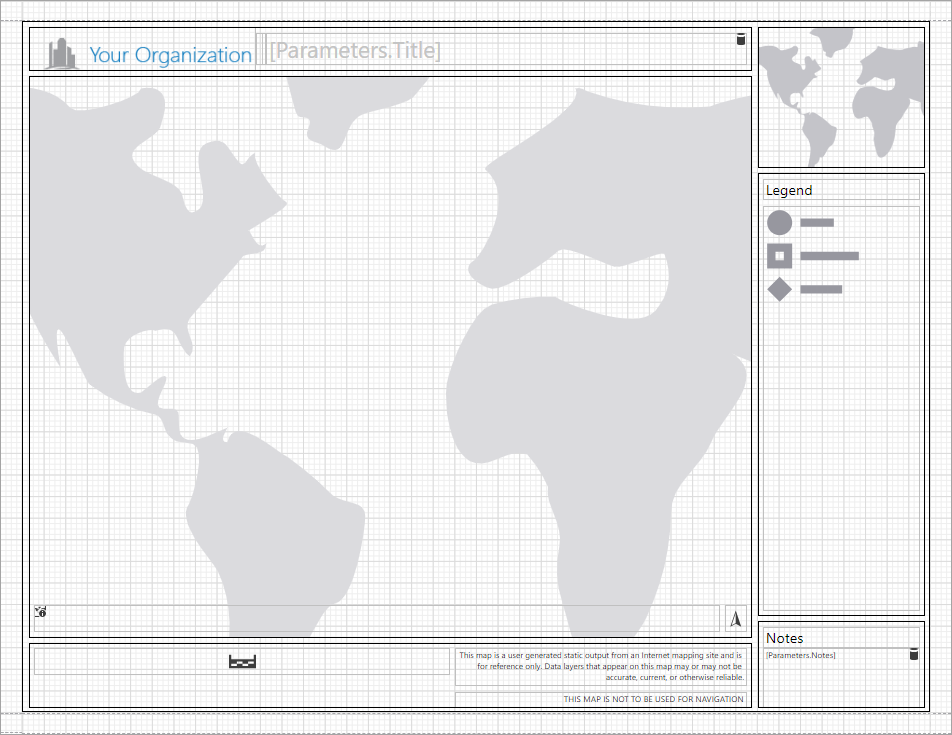
Layout of the preconfigured layouts, shown in Print Designer
The preconfigured layouts use Panel controls  to organize related controls into units. For example, the logo, title, and the vertical line that separates them are in the control called TopPanel; the Legend control and its title are in LegendPanel; and so on. Everything is contained within MainPanel. When you move or copy a panel, the contained controls are moved or copied with the panel. This allows you to move or copy the related controls as a unit if you want to modify the layout.
Print Layout Explorer  shows the print layout's structure in a hierarchy, so you can see the panels and the controls that they contain at a glance.
Selecting an item in the hierarchy also selects it on the design surface and in the Properties panel  . It is sometimes easiest to select a Panel control in Print Layout Explorer.
Once you have modified the print layout to your satisfaction, save the layout. You can now share the layout, configure an application to host it, and run the print.
