This procedure explains how to add a resource in a Universal app to make it searchable using Studio Search.
When you configure a resource, Studio Search indexes its data so that users can search the data efficiently and receive relevant results.
To create a resource:
1.In the Dashboard > App Configuration, click Create Resource.
The Create Resource Configuration window opens.
2.Click Select Layer.
3.Choose the layer you want to make searchable. In our example, we choose Parcel Areas.
4.Click Select.
5.The Create Resource Configuration window is populated with information from the selected layer.
Click Test to verify that the URL is valid.
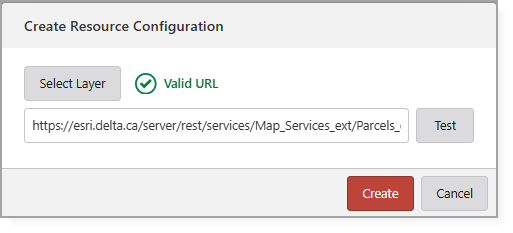
6.Click Create.
The Resource Configuration opens on the Dashboard.
7.Save the app to create the resource. The status changes from Missing to Created and the number of records is displayed.
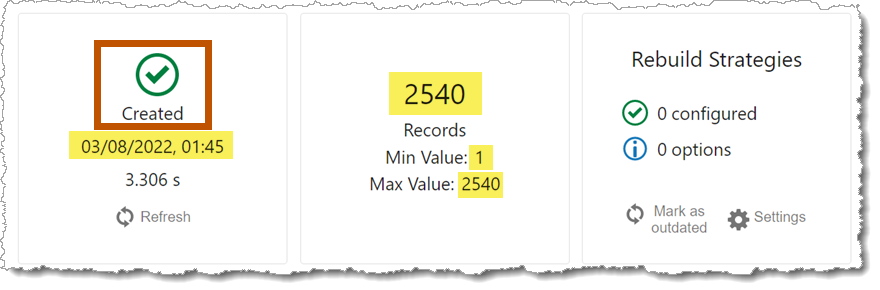
8.Click Settings to configure the reindexing options.
9.Configure at least one Search Field. Fields containing geometries, floating point numbers, binary data, or XML content are not recommended as Search Fields.
Search Fields for Universal Search apps are configured in Studio Search. For Studio Web Search apps, configure Search Fields in Studio Web.
To ensure that the resource data can be properly indexed, select OBJECTID as a minimum.
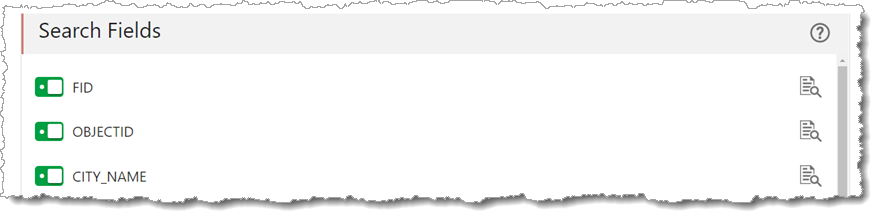
10.Configure the settings described in the table below.
Setting |
Description |
|---|---|
Unique Identifier Field |
Identifies the same feature in search results independently of changes to the feature's technical ID. This is useful when the underlying technical IDs change while the feature data remains the same. For example, exporting and subsequently importing feature data into the same feature class can result in new OBJECTID values. Fields marked with an asterisk (*) have a data type that supports unique values. Common choices include FID and GLOBALID. |
Default Settings |
|
Add Locale |
Specifies the language and regional settings used to configure and display search results. Each locale can have its own description patterns, display standards, synonyms, and phonetic matching settings. |
Short Description Pattern |
Defines the information displayed as the short description of a search result. |
Long Description Pattern |
Defines the information displayed as the long description of a search result. |
Advanced Settings |
|
Weighting |
Determines the importance of results from this resource relative to results from other resources. A value greater than 1 increases the resource's search value, which can move its results higher in the overall list of search results. The value must be greater than 0 and cannot exceed 10. |
Word Separators |
Indicates the beginning or end of a string or word. You can use a space, comma, or other character or symbol. For example: ,);#% are word separators. |
11.Save the app.