By default, when you install VertiGIS Studio Web on premises, the Post Installer opens immediately after the installer completes. The Post Installer is where you configure the elements that are necessary to run an on-premises installation of Web.
You can run the post installer any time if you need to modify the configuration.
Configuring the post installer includes the following steps, which are described in this section:
4.Register Studio Mobile with your Esri portal.
Open the Post Installer
If you are not opening the post installer directly after installing the application, you can open it from the Start menu on the desktop.
If this is the first time you have run the post installer after installing Mobile on premises, you must complete every page in the post installer and click Next to apply the settings on that page. If you navigate away from a page by clicking a link in the sidebar, the configuration for the page that you left will not be applied, regardless of whether you are using the default configuration or a custom configuration. On the final page, you must click Close.
To open the VertiGIS Studio Web post installer:
1.To open the VertiGIS Studio Web post installer, do one of the following:
•Click Start, type in "Ver" and then select VertiGIS Studio Web.
•Navigate to the VertiGIS Studio Web folder in your file system and open the Setup subfolder.
If Web is installed in the default location, the post installer is located here:
C:\Program Files\VertiGIS\VertiGIS Studio Web
2.Double-click the post installer.
The post installer opens to the Welcome page.
Activate Your License
1.In the post Installer, on the Welcome page, click Next.
The Product Activation page opens.
2.When prompted for a license key, you have two options:
•Activate Offline: Contact Customer Service for an activation key.
•Activate Online: Sign in to your ArcGIS Online organization associated with your VertiGIS Studio Mobile license. If your organization already has a license, activation completes automatically. If your organization does not have a license, you are asked if you would like to submit a request for the trial license.
VertiGIS Studio Web comes with a 60-day trial license. To continue using Web after the trial period, the product must be activated with a valid license.
After the product key is activated, the status changes to show that the product is Licensed and the SKUs for this product display.
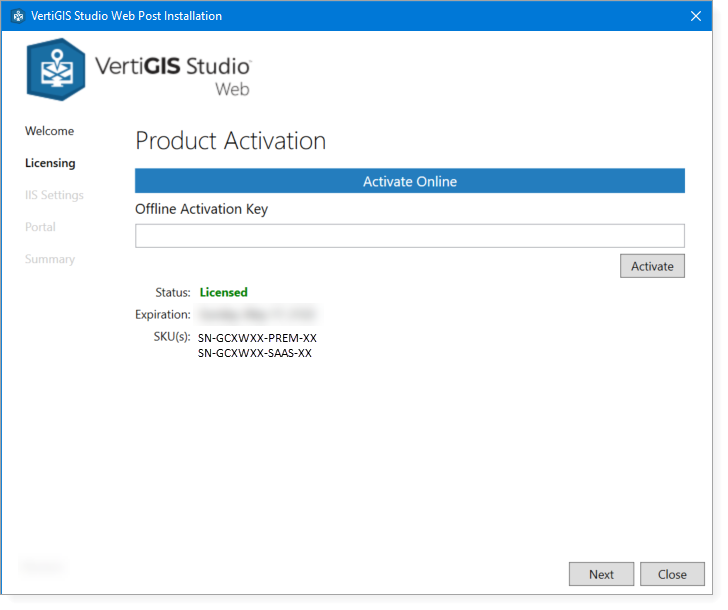
3.Click Next.
Deploy Studio Web to internet Information Services (IIS)
To deploy Studio Web in IIS:
1.In the IIS Settings page, select one of the following options:
•To add Web to a website in IIS other than the Default Web Site, select the Website.
•To use a different virtual directory, type or paste its path into the URL Prefix box.
By default, Web uses /vertigisstudio/Web/ as the virtual directory.
If you have Essentials installed with the default virtual directory (/Geocortex/Essentials) on the same machine, do not use /Geocortex as the virtual directory for Web, otherwise Essentials may cease to function until you uninstall Web and re-run the Essentials Post Installer.
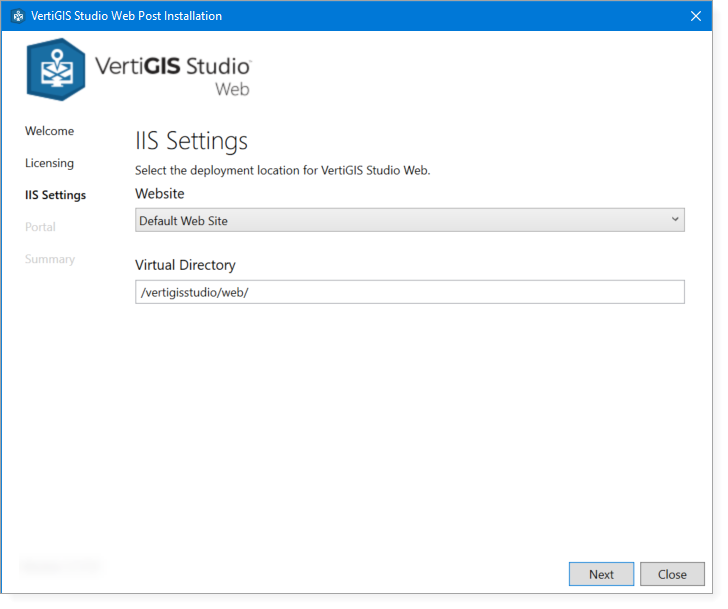
2.Click Next.
Register Studio Web with Your Portal
To interact with maps and services, Web must be registered with an Esri Portal: either Portal for ArcGIS or ArcGIS Online. To register with a portal, you create an application item and register the item to create an app ID and secret. You then configure the app ID in the post installer (seen below).
If your organization has more than one VertiGIS Studio application installed on premises, we recommend that you use the same portal and app ID for them all. Mismatched app IDs can cause authentication and deployment issues.
To register Studio Web with your portal:
1.In the Portal page, select the Portal Type you are using.
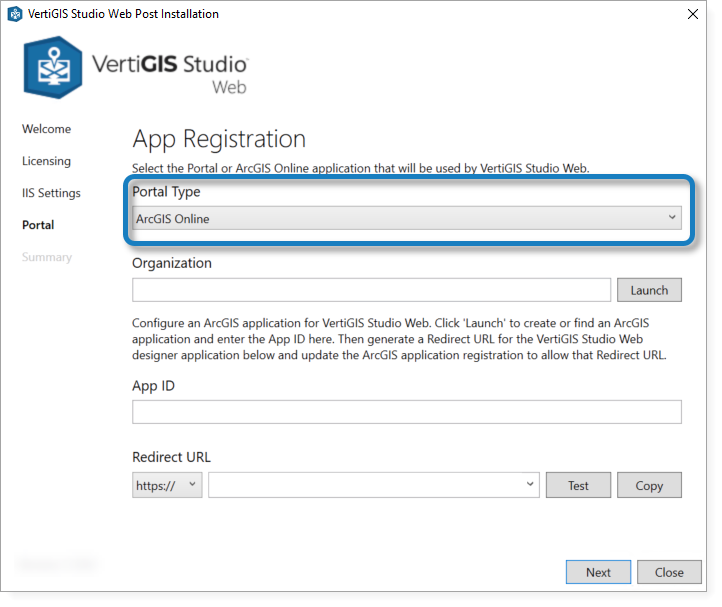
2. In the Organization field, do one of the following:
•Portal for ArcGIS: Enter the URL to your portal instance (for example, https://host.domain.com/arcgis/).
•ArcGIS Online: Enter your organization name (for example, MyOrganization) or the URL of your ArcGIS Online portal (for example, https://MyOrganization.maps.arcgis.com).
4.Paste the App ID (from the app you created in your portal) into the App ID field.
5.In the Redirect URL section:
•Select HTTPS.
•Copy the Redirect URL from the app you created in your Esri portal and paste it into the field.
If you want to copy the Redirect URL to the clipboard, click Copy.
6.Click Test to test the registration of your application.
The post installer tests your registration and either shows a success message or prompts you to fix any errors.
If Portal for ArcGIS is secured using Windows Integrated Security and anonymous access to the portal is disabled in IIS, the post installer will present a warning that says: "The portal application registration is valid—however the specified portal requires authentication". You must install the VertiGIS Studio Web Adaptor Extensions to allow Web Designer to communicate with Portal for ArcGIS.
7.Click Next.
8.In the Summary window, you can launch Web Designer or copy the Designer URL to the clipboard.
Before other members of your organization can access Web Designer, you must share the application item that was created with your organization within your Portal. For additional information on sharing items within an Esri portal, refer to the ArcGIS documentation.
The first time you run Web Designer, you may be asked to allow it to access your ArcGIS Online account information. If so, click Approve.