Use the Copy Features component to create new features in an editable target layer using the geometry and attribute information of selected features from a source layer. Source features can also come from layers created through file uploads. Reusing existing feature information can save time and reduce errors compared to manually drawing features and re-entering their attributes.
Copy Features is useful when features need to be represented in another layer while preserving the original records. When features are copied, new features are created in the target layer. The original source features remain unchanged, and existing features in the target layer are not updated or overwritten.
Field Mapping determines how attribute information from the source features is transferred to fields in the target layer, allowing information to be copied even when the source and target layers have different field structures.
Before you copy features, note the following requirements:
•You must select one or more features before you can use the Copy Features command.
•All selected features must belong to the same source layer.
•You can copy features to one target layer at a time.
•The target layer must be editable.
•The source and target layers must use the same geometry type. For example, a point feature can only be copied to a point layer.
Configure Copy Features
To configure the Copy Features component:
1.Add the Copy Features component to your layout:
•Go to the Components panel and click Add New Component.
•Select the Other tab.
•Drag and drop the Copy Features component into the hierarchy of the Components panel.
2.Navigate to the Results component where you want the Copy Features command to be available (for example, the Results List).
3.Go to the Result Actions section and click Add Menu Item.
4.Select Copy Features in the Commands tab.
5.Click Select.
6.Save the app.
The Copy Features command is now available when the user selects a feature to copy.
Copy Features
To copy features:
1.Select one or more features from one source layer.
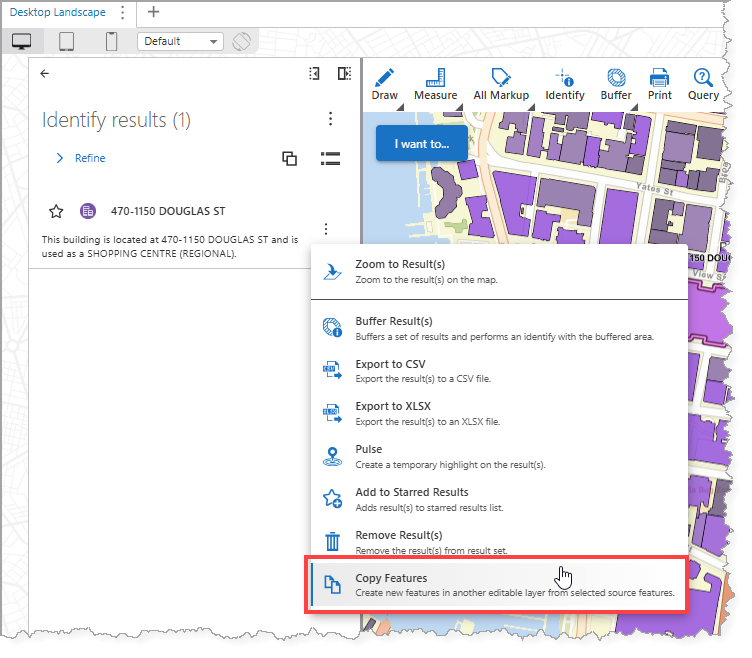
2.In the Results list, click the three-dot menu to open the Result Actions menu.
3.Click Copy Features.
4.Choose the Target Layer. The Target Layers is the layer where the new features will be created. Only editable layers with the same geometry type as the source layer can be used as target layers.
5.Review the Field Mapping and change the mappings as necessary.
Field mapping determines how attribute values from fields in the source layer are transferred to fields in the target layer. Map each applicable source field to the corresponding target field to preserve its attribute value in the new feature.
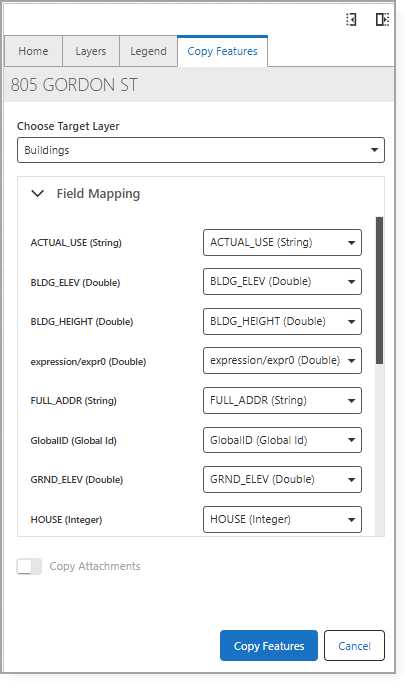
6.Optionally, enable Copy Attachments. Copy Attachments copies attachments associated with the selected source features, such as images or documents, to the newly created features in the target layer.
The target layer must support attachments for the attachments to be copied.
7.Click Copy Features.
A notification appears when the feature is successfully created in the target layer.