DXF is a CAD file format commonly used for sharing drawings between design and GIS systems.
Use the Import from DXF feature to upload and display layer data from a Drawing Exchange Format (DXF) file. Importing DXF files enables users to visualize externally created CAD data without first converting it into a GIS feature layer.
Imported DXF data is stored temporarily in the browser session and is not permanently saved unless additional workflows are configured.
Quick Add Layer from File and Guided Add Layer from File are not supported for DXF import.
A DXF file may contain the following:
•Geometry (points, lines, polygons)
•Styling information
•Annotations and text
•Attributes
•Blocks
•Coordinate information (reprojection supported if configured)
This section explains how to do the following:
1.Add the Import from DXF command.
2.Configure the reprojection.
This configuration is only necessary if the DXF file uses a different spatial reference than the map in Studio Web.
3.Import the DXF file.
Add the Import from DXF Command
To add the Import from DXF command:
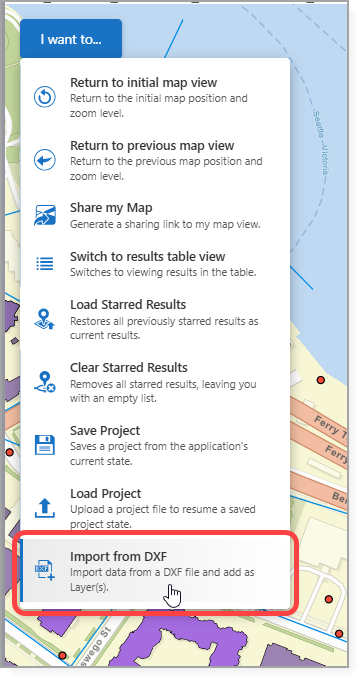
1.Expose the Import from DXF command through one of the following:
•A Toolbar
•The I want to… menu
•A Button
In our example, we add the Import from DXF command to the I want to... menu.
2.Save the app.
3.If the DXF file uses a different spatial reference than the map in Studio Web, configure the reprojection before importing the DXF file.
See Standard Commands for more information on the Import from DXF command.
Configure Reprojection
If a DXF file uses a different spatial reference than the map, you can define how Studio Web should convert coordinates from the spatial reference used in the DXF file.
Reprojection must be done before importing the DXF file. If no reprojection is configured and the spatial references differ, the DXF content may not display correctly.
To configure the reprojection:
1.Go to Services > Coordinates.
2.Click Add Transformation.
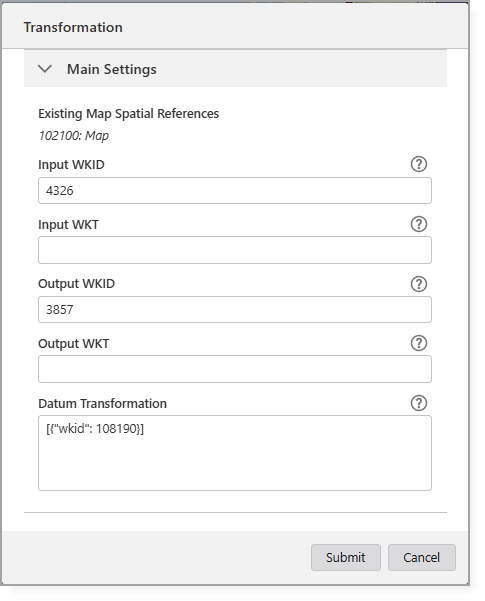
3.Configure the following parameters:
•Input WKID: The spatial reference of the map.
•Output WKID: The spatial reference used when the DXF file was created.
•Datum Transformation: The transformation ID that connects the two datums.
4.Click Submit.
The transformation is available in the Select Coordinate System window during the import process.
Import a DXF File
To import a DXF file:
1.In the app, select Import from DXF.
The Select File to Continue window opens.
2.Upload the DXF file.
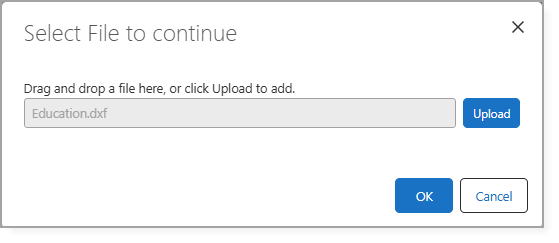
3.Click OK.
The Select Coordinate System window opens.
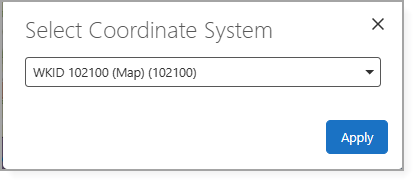
4.If reprojection is required, select the appropriate transformation you configured.
5.Click Apply.
The DXF file content is automatically organized into the following sublayers:
•Annotations
•Points
•Lines
•Polygons
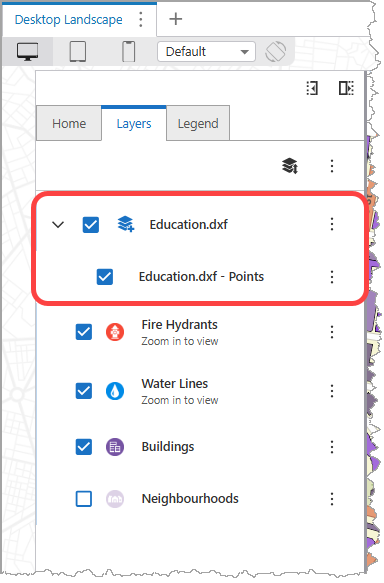
These sublayers appear in the Layer List and can be toggled on or off independently.