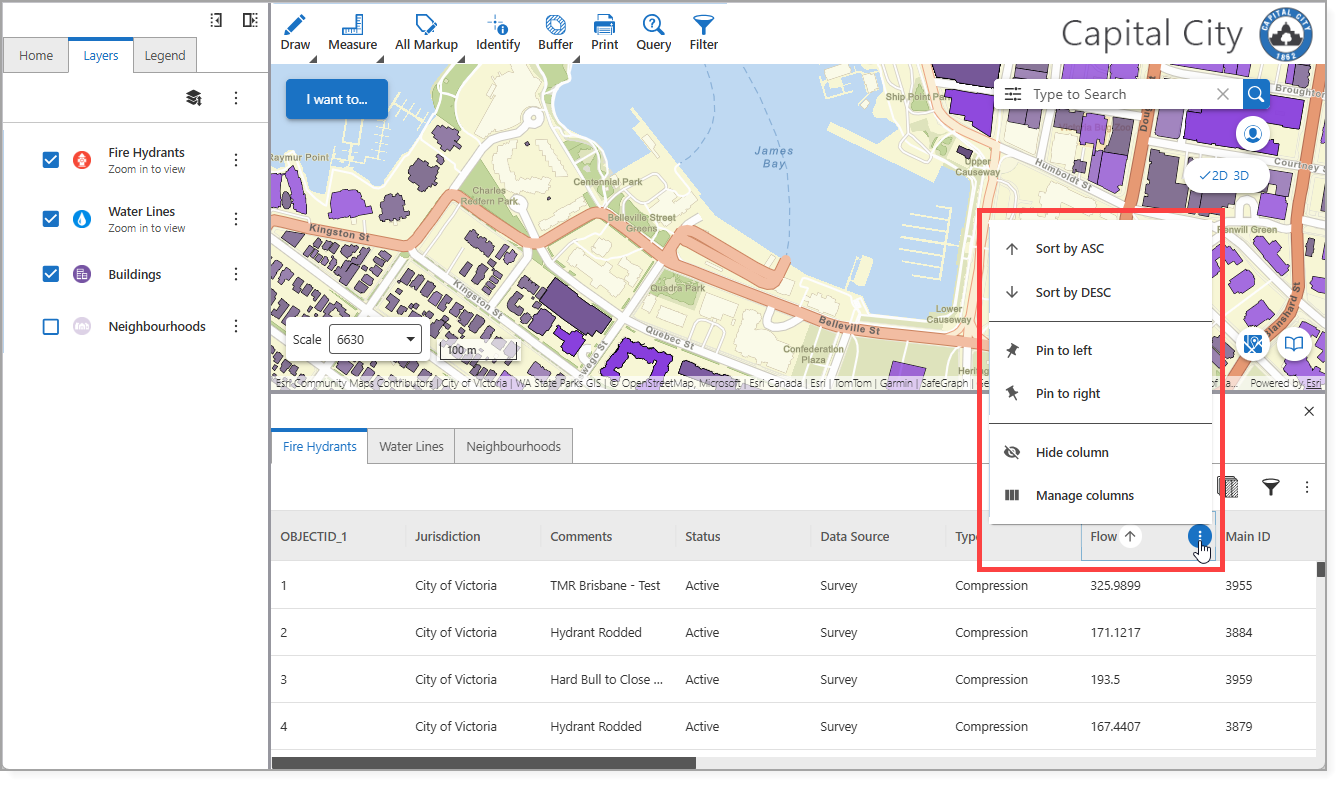
The Attribute Table component provides a tabular view of your map data, complete with sorting, filtering, and column management functions.
Only layers that support querying can be displayed in the table.
The Filter option is available in the Attribute Table only when the Filter Query component is also included in the layout.
To configure the Attribute Table:
1.Add the Attribute Table component to your layout:
•Go to the Components panel and click Add New Component.
•Select the Other tab.
•Drag and drop the Attribute Table component into the hierarchy of the Components panel.
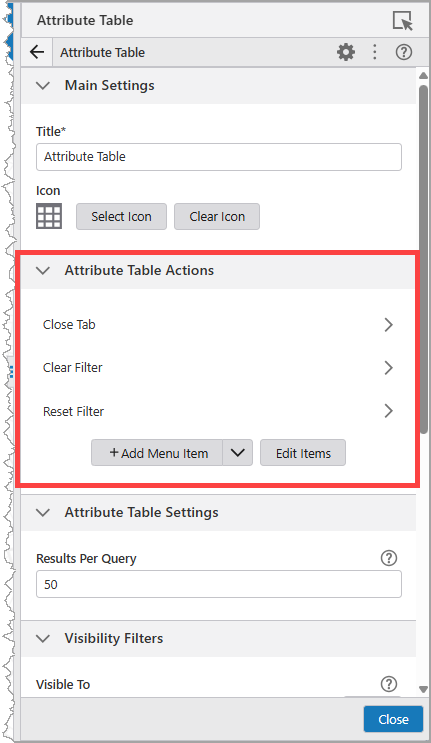
2.Add commands to the Attribute Table's Actions menu:
•Under Attribute Table Actions and click Add Menu Item.
•Select the commands you want to make available via the Attribute Table's Actions menu. For example, you can add Clear Filter and Reset Filter.
3.Configure the maximum number of Results Per Query in the Attribute Table Settings.
4.Go to the Layer List component > Layer Actions and add the Add Layer to Attribute Table menu item.
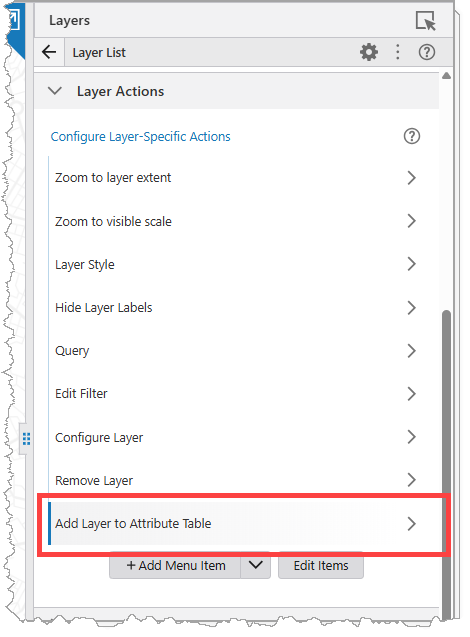
When the user selects Add Layer to Attribute Table from a layer's Layer Actions menu, the layer is added to Attribute Table in a separate tab. Each column heading includes an Actions menu with options for managing the column, shown int he figure below.
Users can sort the table by multiple columns simultaneously. This functionality is available only for layers and tables that have supportsOrderBy enabled at the service level.