Use the Add Styles tab in Dimensioning Admin to create a style family for a dimension feature class.
A dimension style controls how a dimension is displayed without changing the underlying measurement.
To create a style family, you first select an existing dimension style to use as a template. ArcGIS Pro provides extensive options for configuring dimension styles and text symbology, so you can create a dimension style with the required appearance and then use it as the basis for a style family.
The properties of the template are carried over to each style in the family. This allows you to create style families with different appearances by using different templates. Properties that you specify in Dimensioning Admin override the corresponding properties of the template.
You can also create styles for multiple map scales at the same time. Dimensioning Admin creates a style for each specified scale and calculates the appropriate text size relative to the reference scale of the dimension feature class.
To create a style family:
1.Open the Dimensioning Admin tool and select the Add Styles tab.
2.Select the source Geodatabase and Feature Dataset to which you want the style family applied.
3.Select the Template Feature Dataset, Template Dimension Class, and Template Style on which to base the new style family.
4.Configure the Override Properties, which let you replace selected properties inherited from the Template Style when Dimensioning Admin generates the new style family:
•Size: The text size, in points, to use for the generated dimension styles. When scales are specified, the text size is adjusted for each scale relative to the reference scale of the target dimension class.
•Precision: The number of decimal places to display for dimension values.
•Color: The color to use for dimension text. Enable this option to override the color defined by the template style. If it is not enabled, the template style's color is used.
5.Enable Scales to specify the scales for which to create styles. Separate multiple scales with commas or spaces.
For example, our dimension class has a reference scale of 1:1000 and dimensions need to be displayed at the following map scales:
•1:200
•1:500
•1:1000
•1:5000
We enter the Scales as 100, 200, 500, 1000, 5000.
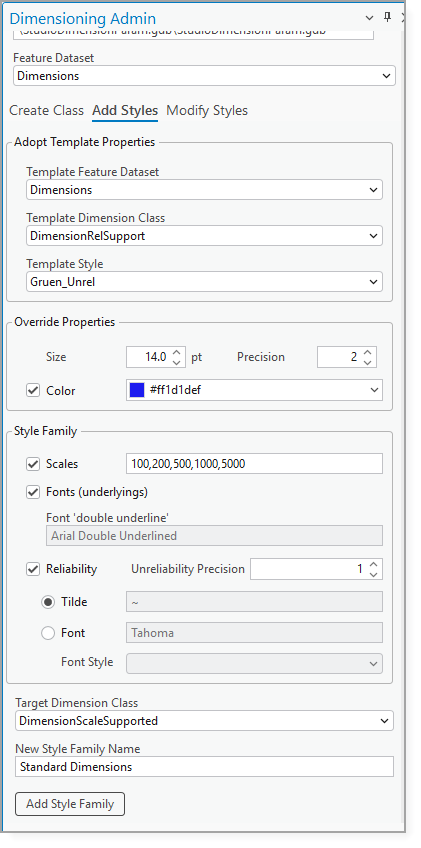
Dimensioning Admin creates a style for each scale and adjusts the text size relative to the 1:1000 reference scale. The generated styles inherit their other display properties from the selected template unless you override those properties in Dimensioning Admin.
If you do not specify any scales, a single style is created using the specified text size
6.Configure the remaining Style Family settings, as described in the table below.
Field |
Description |
|---|---|
Fonts (underlines) |
Creates additional style variants for underlined dimension text. When enabled, styles are generated for plain, single-underlined, and double-underlined dimension text. |
Font 'double underline' |
The font used for the double-underlined style variant. |
Reliability |
Creates style variants that visually distinguish unreliable or imprecise measurements from reliable measurements. |
Unreliability Precision |
The number of decimal places to display for measurements marked as unreliable. This allows unreliable measurements to use a different precision than standard dimension values. |
Tilde |
Prefixes unreliable dimension values with a tilde (~) to visually indicate that the measurement is approximate or unreliable. |
Font |
Uses a different font to distinguish unreliable dimension values. |
Font Style |
The font style to use for unreliable dimension values when Font is selected. |
7.Select the Target Dimension Class (typically, the one you just created in Create a Feature Class).
8.Enter a New Style Family Name.
9.Click Add Style Family.
A complete set of scale-specific styles is created, all sharing the properties you overrode (for example, a custom color), without needing to manually configure each scale's style.
See also....