This option is not the recommended option to integrate Studio Search with Studio Web. The preferred method is Option A: Native Integration in Studio Web.
Integrate Studio Search into Studio Web search with Studio Workflow templates:
1.Set up your Studio Search app.
2.Configure the Studio Workflow template to enable the integration between Studio Search and Studio Web.
3.Link the Search workflow to your Studio Web app.
4.Customize the Search component in your app in your Studio Web app.
Set up Your Studio Search App
To set up your Studio Search app for Studio Web integration:
1.In Studio Search Designer, either select an existing app that you would like to use or create a new one.
The app opens to the App Configuration page.
2.Click Create Resource.
The Create Resource Configuration window opens.
3.Click Select Layer the choose the layer to add to your app.
If your selected layer has multiple layers, a window appears for you to select a single layer.
4.Click Create.
5.Click File > Save to save the newly created resource.
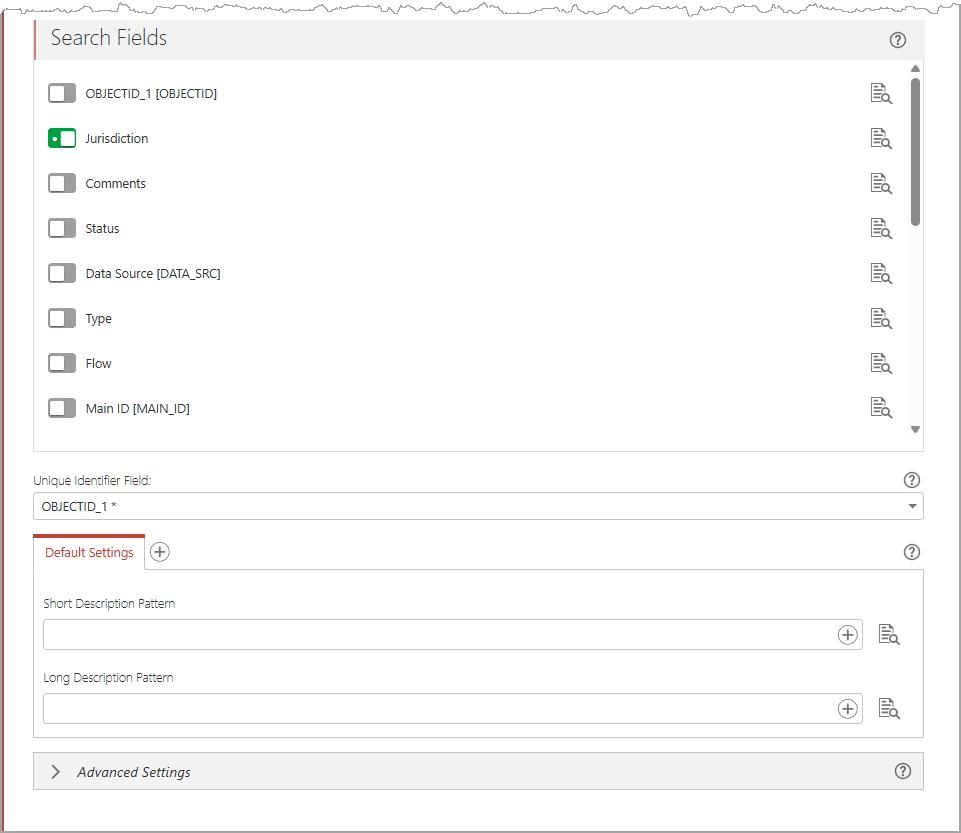
6.Configure the settings of each layer. The settings are described in the table below.
Term |
Definition |
|---|---|
Search Fields |
When enabled, the field is searchable. |
Unique Identifier Field |
This field is used to point to the same feature in the search result. |
Short Description Pattern |
A concise explanation of the search result. |
Long Description Pattern |
A detailed explanation of the search result. |
7.Repeat the above steps to add all map layers (resources) that you will use in your Studio Web app.
8.Configure the basic and advanced app settings as required.
Then, generate however many access tokens you want.
You must have at least one access token set up.
9.Click New Token in the App Tokens for Search Client Access section.
10.Enter at least one URI in the Referrer URIs and select the Expiration Date.
11.Click Create.
Now that you have set up your Studio Search app, you can configure the Studio Workflow template to enable the integration between Studio Search and Studio Web.
Configure the Studio Workflow builds
After you Set up Your Studio Search App, you must configure the Studio Workflow template to enable the integration between Studio Search and Studio Web.
You can find a copy of the template to edit here.
Link the Search Workflow to your Studio Web App
After you set up your Studio Search app, you must configure the Studio Workflow template to enable the integration between Studio Search and Studio Web.
To link the Search workflow to your Studio Web App:
1.Open your app in Studio Search Designer.
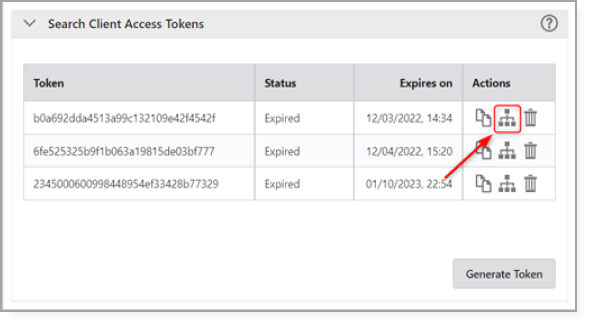
2.Navigate to the App Configuration page and expand the Search Client Access Token tab.
3.Click the Copy Configuration button.
4.Go to VertiGIS Studio Web and open your app.
5.Select the I want to component.
6.Click +Add Menu Item to open the Select Command window.
7.In the Workflows tab, search for "VertiGIS Studio Search Workflow".
8.Select "Shared with Me" in the Filter by dropdown.
9.Choose the latest version available.
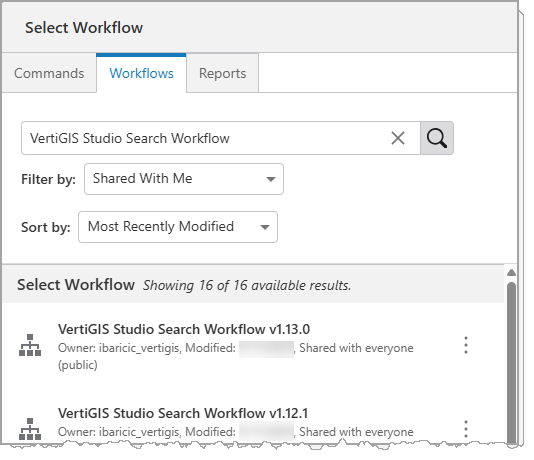
10.Click Select.
The workflow is now linked with your Studio Web app.
11.In the Menu Items, select the the workflow you just linked.
12.Open the Input Arguments Editor.
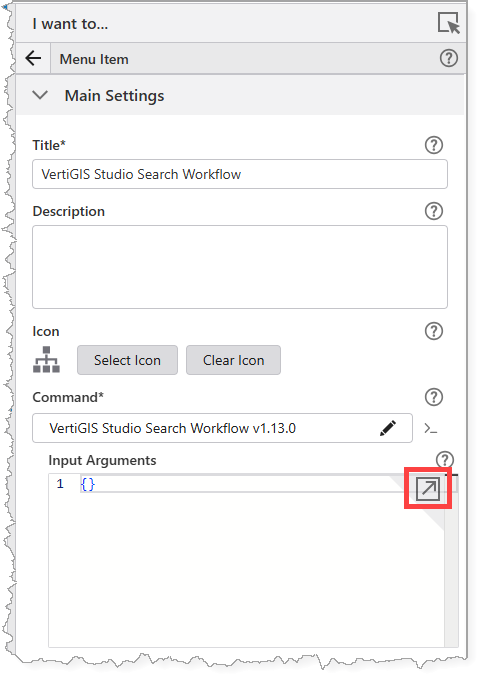
If there are curly brackets in the field, you must delete them.
13.Paste the copied configuration items in the Input Arguments. It should look similar to the figure below.
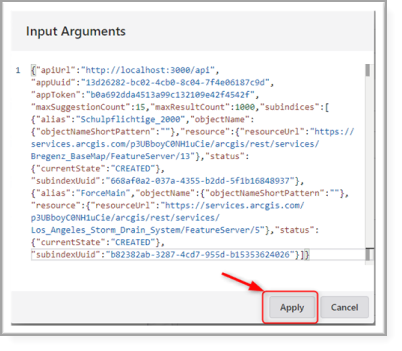
14.Click Apply.
The workflow will now use the specified Studio Search app for all searches.
You can now go to VertiGIS Studio Web to customize the Search component.
Customize the Search Component in Studio Web
After you link the Search workflow to your Studio Web app, you can open your Studio Web app and customize the Search component.
See the VertiGIS Studio Web documentation for more information.