Access to VertiGIS Studio Workflow is part of the VertiGIS Studio Mobile package. Workflows can be very powerful and enable you to extend the functionality of your Mobile apps to include complex processes, including forms. For example, if you have specific information needed for an inspection, you can give field workers multiple options to select so they do not have to type in data. You could also include a guided interaction form with cascading combo boxes that limit options based on previous choices.
In the following water pump example, users can identify a pump by serial number or by the type of pump they can observe.
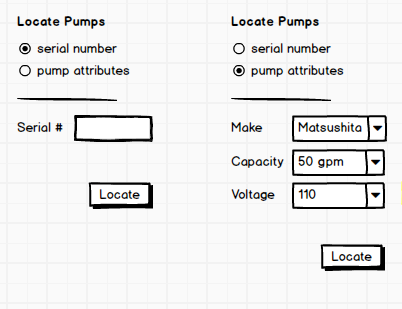
For detailed instructions on building workflows, see the VertiGIS Studio Workflow Help on the documentation center. In particular, the Activity Reference contains information about each Workflow activity, and if it can be used offline or not.
It's important to know that not every Workflow activity works offline, although most of them do. Similarly, not all workflows work in Mobile apps. Fortunately, Workflow has a built-in way of presenting you those activities that work with your app or offline. The Deployment settings in Workflow, allow you to select whether your workflow is going to be deployed in a Mobile app and if it needs to work while offline. When you select those options, the list of activities changes to present only those activities that meet those criteria.
You can add a workflow to run in multiple places in VertiGIS Studio Mobile Designer and VertiGIS Studio Go.
User-Run Workflows:
•I Want To Menu: You can add a menu item that runs a workflow when a user clicks the menu item.
•Map | Result Action: You can add a workflow to a result action for a particular layer. The workflow runs when a user clicks the result action button on that layer.
•Map | Context Menu: You can add a menu item that runs a workflow when a user right-clicks or long-presses on the map and then clicks the menu item in the resulting context menu.
•Result Details | Result Action: You can add a workflow to a result action that works on all the layers in a map. The result action appears in the feature Details panel when a feature is selected and users run the workflow when they click a result action on the Details panel.
•Taskbar: You can add a menu item to the taskbar that runs a workflow when a user clicks the menu item.
Automatic Workflows:
•Map | Events | Map Initialized: You can add a workflow to run each time a map is triggered to initialize - when the app loads, when a map area is activated or deactivated, or when a user logs out and then in again.
•Launch Link: You can add a workflow to a link that runs a workflow when a Mobile app is opened from an external application.
Just like other content, workflows must be shared in ArcGIS Online or Portal for ArcGIS if you want others to be able to use them in your Mobile.
